

Have you ever lost track of your notes? You may have found a great article and saved it. Then, a week later, you went to open it and found a 20-page research paper. It had nothing to do with what you were looking for. If only you'd had a better way to organize your notes so that you could find what you needed quickly.
That's what a second brain does. It helps you take notes, organize them, and retrieve necessary information. If you're reading this, you're probably considering Workflowy vs Notion as candidates for your second brain. This guide will help you decide which tool to use to organize your notes, get more innovative, and manage them with AI.
Constella's AI notes manager can help you achieve this goal. It integrates with Notion and Workflowy to help you better organize your notes.
What is Workflowy?
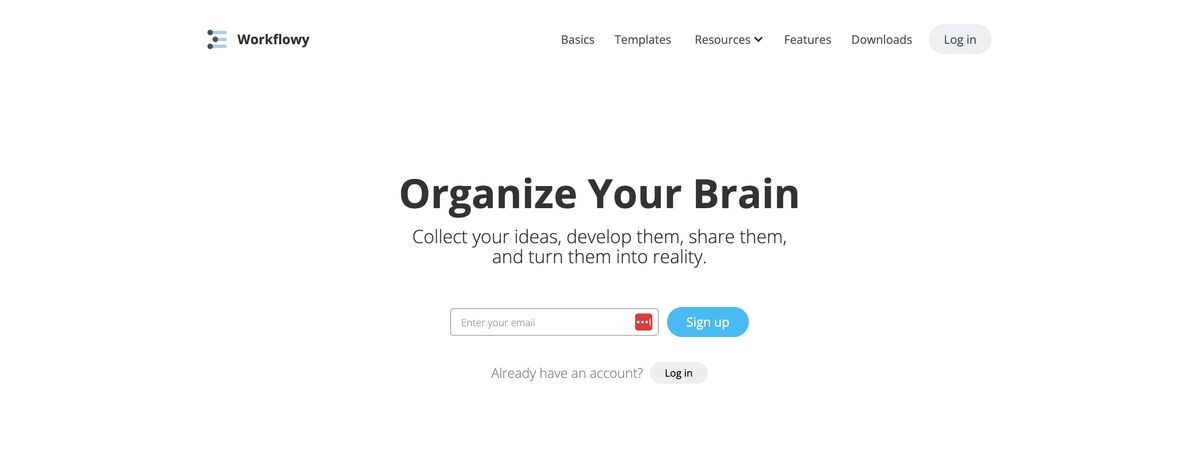
Workflowy is like a second brain or a productivity note-taking system. It’s a very in-depth GTD note-taking system. You can use backlinks, capture anything, and organize how you like. You can use Workflowy to help brainstorm ideas, manage projects, and work as a team. You can capture anything, organize your work, analyze your notes, search for specific notes, and share what you have created. Many other tools and features, such as nesting, backlinks, tags, and more, help you capture and organize.
Workflowy is an excellent tool for anyone who wants to organize and create in-depth notes. This type of note-taking allows for analyzing, organizing projects from start to finish, and storing things they want to remember. It's also a good way for teams to collaborate on ideas and stay on track with tasks. Features include kanban-style organization, Collaboration and project management features, Image and link embeds, and all the other note-taking app things.
Related Reading
- Second Brain Examples
- How to Build a Second Brain
- Tiago Forte Code
- Second Brain Notion Template
- Roam Research vs Obsidian
- Notion vs GoodNotes
What is Notion?
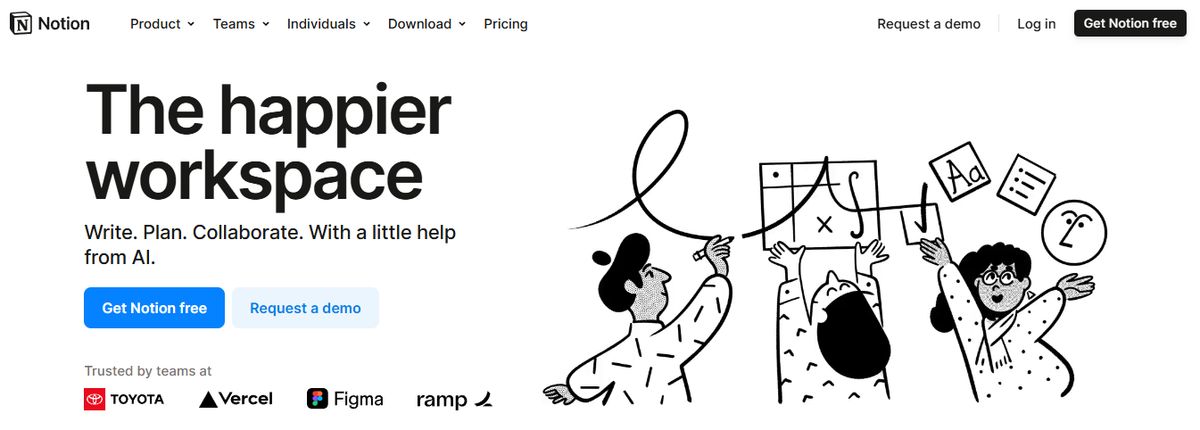
Notion is a note-taking app widely used in the software industry but little known outside. You can use it to take simple notes or manage projects using databases with various views. Notion can be as straightforward or complex a tool as you want, but it has a steep learning curve—most people can't go from taking simple notes to managing databases in an afternoon. This complexity, combined with a heavy bias toward people who work for software companies, makes Notion hard to recommend to the average person.
Unmatched Versatility: Notion Is A Jack Of All Trades
When configured well, Notion can replace a bunch of tools. You won’t need separate solutions for task management, note-taking, documentation, CRM, agency management, and content creation. You can set up Notion to fulfill these needs in a tailored workspace.
Say you run a marketing agency that juggles multiple clients and campaigns simultaneously. You can create separate pages for each client to store details like objectives, timelines, and key documents. Within each page, you can build task lists, calendars, and content libraries to keep everyone on track. With unlimited storage and content blocks on most plans, you can add as many clients and campaigns as you need.
Asynchronous Collaboration: Work Together Even When Apart
Inside the Notion platform, your team can work together in real-time or on their own time. Everything is centralized to store everything from documents and spreadsheets to tasks, notebooks, and project boards. It’s easy for everyone to find what they need… when needed. Updates happen in real-time, too, so you’ll always be in sync with the latest changes.
Notion’s flexible infrastructure means you can assign owners and collaborators to any page or block of information. You can track every change, and users can leave comments to provide feedback, ask questions, or move the discussion along. Customizable notifications ensure that no update, mention, or comment goes unseen, eliminating the need to chase down colleagues.
Plus, it integrates with tools you already use, like Slack and Google Calendar, for smooth communication and coordination across platforms.
Tasks Are Organized By Due Date And Priority Level.
Relational Databases
Notion makes it easy to connect and manage information across databases. You don’t need a degree in computer science to build them, either. You’ll be able to create multifaceted interfaces that combine all types of content—text, images, files, clients, projects, whatever you want—into one place. Say you want to link your project management tasks to key clients and files. In Notion, it’s a breeze.
Connecting your tasks database to your client and file databases takes a few clicks. Now you have a holistic view of everything for each project. Need to see all the tasks due this week for Client X? Filter for that client and date range. Are you still waiting for feedback for Task Y? Check the relation to see if the file has been uploaded. With roll-ups, you can display total task counts for each client or project. The intuitive interface means you can visualize and manage complex data in whatever makes sense for your needs.
While Notion won’t replace a full-scale database solution, it's a simple yet powerful option for anyone looking to organize information in a flexible, user-friendly way.
Everything’s A Page: Notion’s Unique Structure
This concept is the secret behind Notion’s unparalleled flexibility. A page in Notion can be as straightforward as a document with some text and images. But it can also be a doorway to an interconnected wiki or a database housing tasks, events, contacts, and more. Each page is a blank canvas for you to customize as needed.
50+ Block Types: Build Pages That Do More Than Store Content
Blocks in Notion are unique elements within a page, helping you build pages that can do much more than store content. Notion comes with over 50 different block types that you can place anywhere with an easy drag-and-drop interface.
Want to embed a Google Map visualization or a social media post? Drop in an Embed block. Running equations and computations? Deploy the Math block and Notion’s LaTeX syntax. AI blocks, buttons that trigger automations, synced blocks that update everywhere—with a quick slash command, you can implement it into a page.
Granular Sharing Permissions: Control Who Sees What
Notion gives you complete control over sharing workspaces, pages, and content. You can create permission groups that automatically provide the right level of access to specific team members—all you have to do is add someone to a group and they’ll have access to what they need. You can also invite guests and outside collaborators to specific pages without sharing your whole workspace.
On Notion’s Enterprise plan, admins have advanced controls, such as overriding settings for certain groups, restricting page sharing, disabling guests for select pages, or applying rules across the entire workspace. They can also designate unique admin users who can make changes but not view billing details.
Notion Ai Add-On: Get Help From Artificial Intelligence
Although it costs an extra $8 to $10 per user per month, it might be helpful if you need help organizing your ideas, summarizing docs or meetings, generating content, brainstorming, or anything else ChatGPT can help with. While Notion AI turbocharges productivity, it does have its limits. It won’t write entire blog posts or memos from scratch—rather than making something out of nothing, it’s meant to enhance and support human thinking, not replace it.
Workflowy vs Notion Detailed Comparison

User Interface and Organization: Workflowy vs Notion
Workflowy and Notion have very different user interfaces and organization systems. Workflowy is about minimalism, making taking notes easy and managing tasks without distraction. It uses nested bullet points to organize information hierarchically, so you can quickly jot down ideas and expand upon them later.
On the other hand, Notion has a more complex and customizable interface. You can create tables and databases, organize information in various ways, and build a system that suits your needs. Notion’s organizational flexibility can accommodate everything from simple note-taking to complex project management.
Collaboration and Teamwork: Workflowy vs Notion
Workflowy and Notion offer very different collaboration features. While Workflowy supports basic options, such as sharing lists and editing individual items, it lacks robust tools for team projects. Notion, on the other hand, excels in collaborative features. Multiple users can simultaneously work on the same page, leave comments, tag team members, and track changes. These capabilities make Notion a powerful tool for managing team projects.
Rich Media Embedding: Workflowy vs Notion
Regarding rich media embedding, Workflowy and Notion are worlds apart. Workflowy focuses on text-based note-taking and does not support extensive media embedding features. Notion, by contrast, allows users to embed various media types, including images, videos, web pages, and files. This capability enhances the richness and context of your notes, making your content more valuable and informative.
Templates and Pre-built Structures: Workflowy vs Notion
Workflowy and Notion provide very different options for organizing information. Notion has an extensive library of pre-built templates for various tasks, including project management, meeting agendas, and habit tracking. These templates allow users to set up notes quickly and ensure consistent project organization. Workflowy, on the other hand, does not offer any pre-built templates or structures. Users must start from scratch and create their organizational structures, which can be time-consuming.
Pricing and Availability: Workflowy vs Notion
Workflowy and Notion have different pricing models. Workflowy uses a freemium model, where users can access a limited set of features for free and unlock additional functionalities through a subscription. Notion also offers a free plan but has more generous limits. Users can access many premium features, and additional functionalities are available at a more affordable price than Workflowy’s subscription pricing.
Mobile Applications: Workflowy vs Notion
Both Workflowy and Notion have mobile applications for iOS and Android, but they differ significantly in user experience. Workflowy’s mobile app has a more straightforward interface, lacking some advanced features found in the web version. This can hinder functionality on the go. Notion’s mobile application closely resembles the web experience, ensuring comprehensive functionality across devices.
Additional Considerations: Workflowy vs Notion
There are a few additional differences between Notion and Workflowy worth noting. First, Notion has a built-in spell-check function, whereas Workflowy does not offer this feature. Notion also supports mind map views, aiding in visualizing connections between ideas. Workflowy lacks this functionality. Finally, Notion allows embedding and publishing web content from third-party sources, enhancing data integration. Workflowy lacks this flexibility.
Pros and Cons: Workflowy vs Notion
Notion Pros
Notion is a unified workspace for various project management tasks. It offers structured documents, flexibility, ease of use, dark mode, simple online databases, beautiful design, integration with Slack, and quick editing with shortcuts.
Notion Cons
Notion has a few drawbacks. API development is ongoing, and it lacks database permissions. Notion can be slow, and Evernote import is unreliable. There is no markdown editor, and users cannot hide key fields in tables. Notion also lacks integrations with tools like Slack.
Workflowy Pros
Workflowy excels in simplicity and ease of use. It is ideal for users wanting a straightforward tool without unnecessary complexities.
Workflowy Cons
Workflowy lacks advanced features such as rich media embedding, templates, and robust collaboration tools. These limitations may hinder complex projects.
Related Reading
- Roam Research Alternatives
- Roam Research vs Notion
- Amplenote vs Notion
- NotePlan Alternative
- Amplenote vs Obsidian
- Heptabase vs Obsidian
8 Best Workflowy and Notion Alternatives for Note-Taking
1. Constella
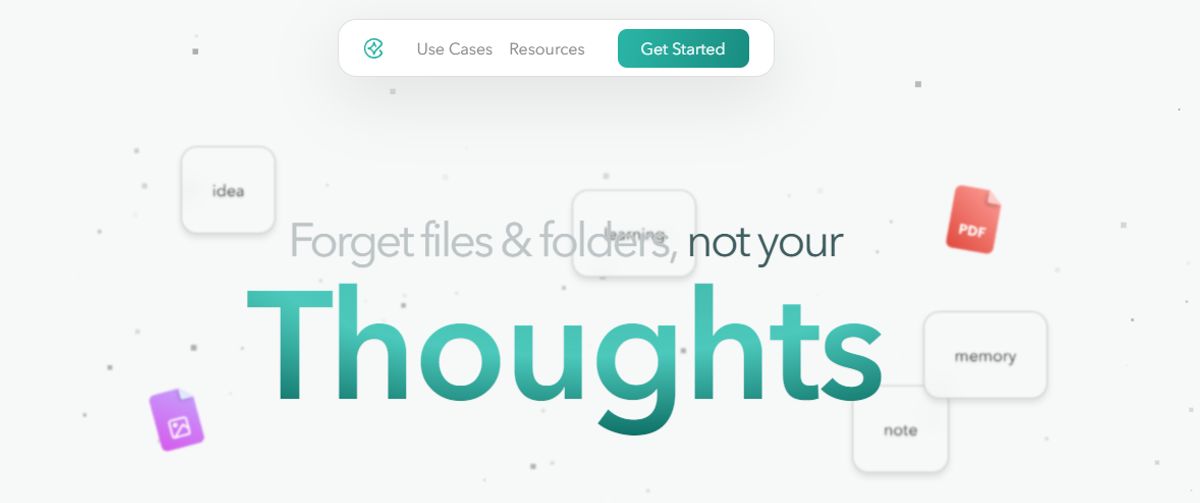
Constella rethinks note-taking with an infinite canvas that lets you capture and connect ideas effortlessly. It is powered by AI search that makes finding information instantaneous. Whether you're a researcher trying to draw connections across numerous papers or someone who wants a more intuitive way to organize your thoughts and files, Constella's AI assistant helps you build and navigate your knowledge base without the constraints of traditional folder structures.
Constella transforms how you capture, find, and connect your ideas, perfect for busy knowledge workers and researchers limited by conventional note-taking tools. Research 10 times faster with Constella's AI notes manager.
2. Evernote
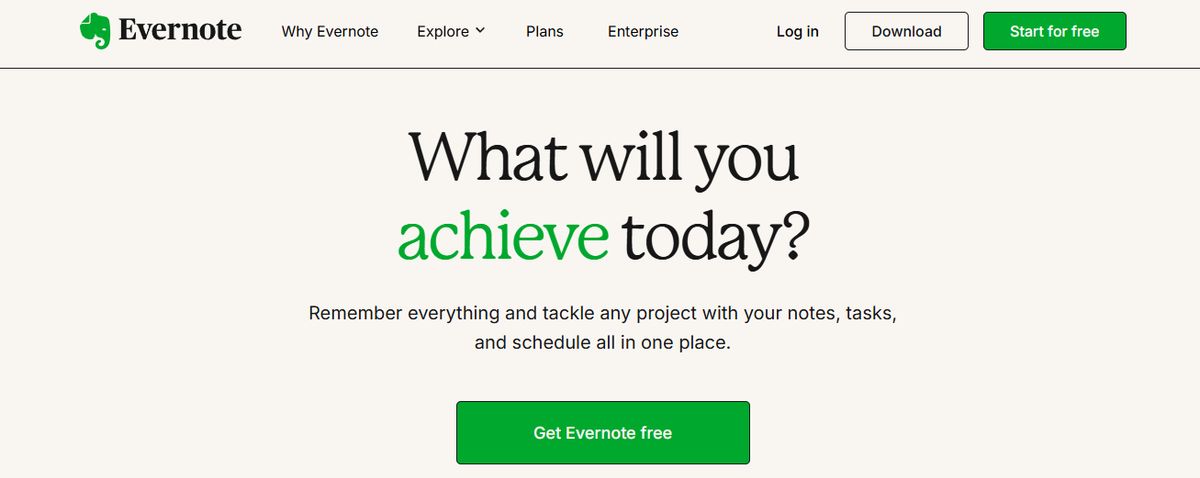
With Evernote, it’s a case of never forgetting your first love. I spent years tinkering with Evernote to build my ideal experience and workflow, but it never came together. From notes, tasks, and schedules to your favorite resources from the web, Evernote makes it easy to save anything you want on your chosen device. I could quickly integrate Evernote with ClickUp, Google Calendar, Slack, and Microsoft Teams, so all my standups, client meetings, and reminders automatically synced with Evernote.
The tool is also available offline, so it’s comforting to know I’ll still be able to access my notes if I’m camping or traveling without internet access. Evernote’s AI-powered search functionality is quick and intuitive. It works across PDFs, documents, and images, so searching through many notes and content is never an issue. The Tasks feature lets you outline project steps and assign responsibilities to others—a great way to collaborate with your team on the go.
Pros
- Save snippets from the web directly into their notes with Web Clipper
- Scan, digitize, and organize paper documents with your phone’s camera
- Edit notes and tasks in real time and keep all contributors on the same page
Cons
- A limited free version that pushes users towards a premium subscription.
3. Joplin
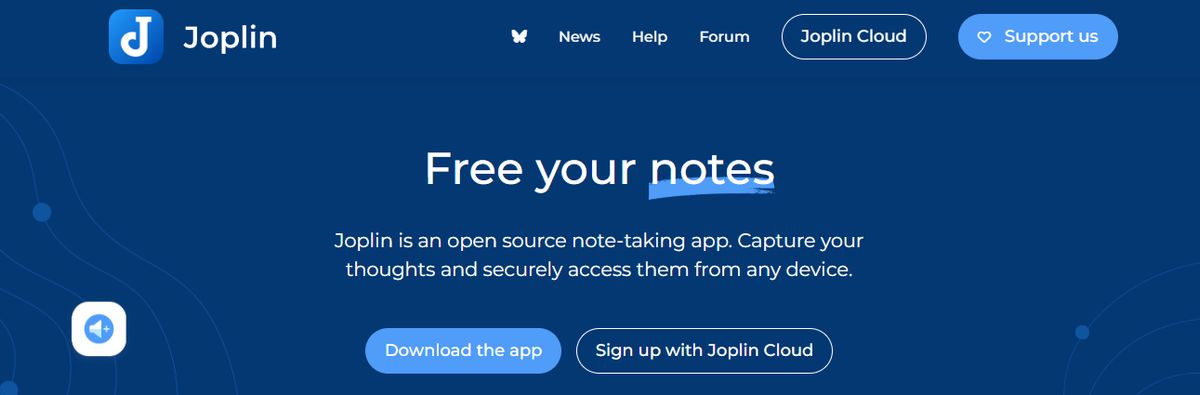
Joplin is an open-source note-taking application that helps you put your thoughts into words and securely access them across Windows, macOS, Linux, and iOS. The tool supports multimedia notes, including images, videos, PDFs, and audio files. Its sharing and collaboration features are smooth. It allowed me to share my notes with friends, family, and colleagues and work alongside them on the notes without hassle.
There was also an option to save a note (on the internet) and share the link with others—an easy way to share task lists, company wikis, or meeting notes with a large group of people. Joplin offers extensive customization options through plugins, custom themes, and text editors (such as Rich Text and Markdown), ensuring you can tweak the tool to your liking. While it’s an open-source app, it maintains data privacy with End-To-End Encryption (E2EE). Your notes will be accessible only to you unless you choose to share them.
Pros
- Format your notes with Rich Text or Markdown
- Save web pages or take screenshots directly with the Web Clipper extension (available for Chrome and Firefox)
- Work offline and take down notes on the go
Cons
- The interface is not as user-friendly as some commercial options, limiting its appeal to less tech-savvy users
- Syncing requires a bit more setup compared to other mainstream note apps
4. Google Keep
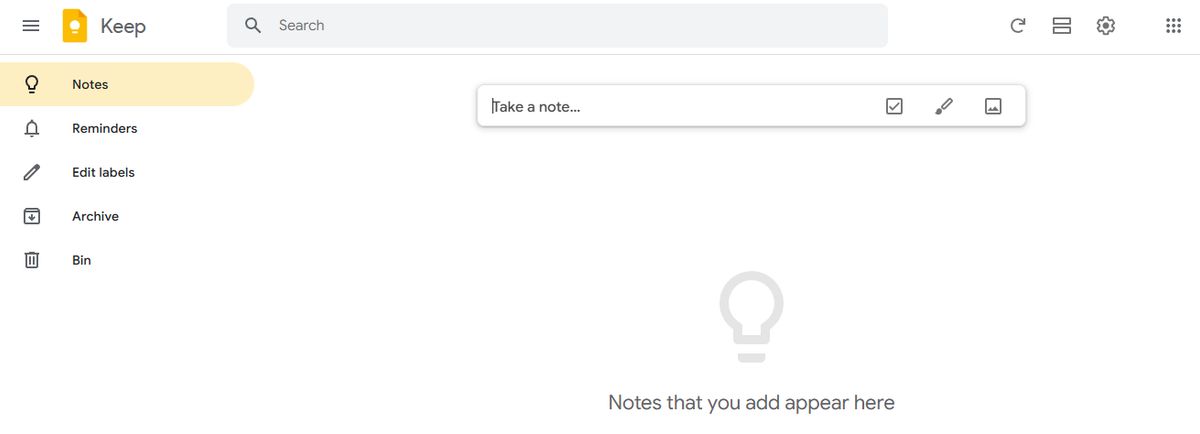
Google Keep allows users to effortlessly capture content, including notes, lists, photos, and audio, and organize it on a digital bulletin board. Sharing notes among family and friends is simple. For example, you can share a shopping list and see updates in real-time as items are checked off—there is no need for back-and-forth communication. I like Google Keep’s voice note feature.
When I’m in a rush and need to jot down something important, I can simply record a voice memo instead and transcribe it into text later—fast and efficient! Like Apple Notes, anything more complex or advanced you want from the tool is a struggle. You might think Google would make more effort to combine the Keep experience with Google Tasks and Calendar, but it hasn’t happened. They continue to be disparate experiences, which can be frustrating if you want an all-in-one software or expertise.
Pros
- Get reminded of your to-dos at the right place and at the right time with time-based and location-based reminders
- Organize notes using labels and colors
- Integrate your notes smoothly with Google Docs, Calendar, and other apps within the Google ecosystem
Cons
- More suitable for quick notes rather than detailed, lengthy note-taking
- The features are too essential for complex note organization
5. Document360
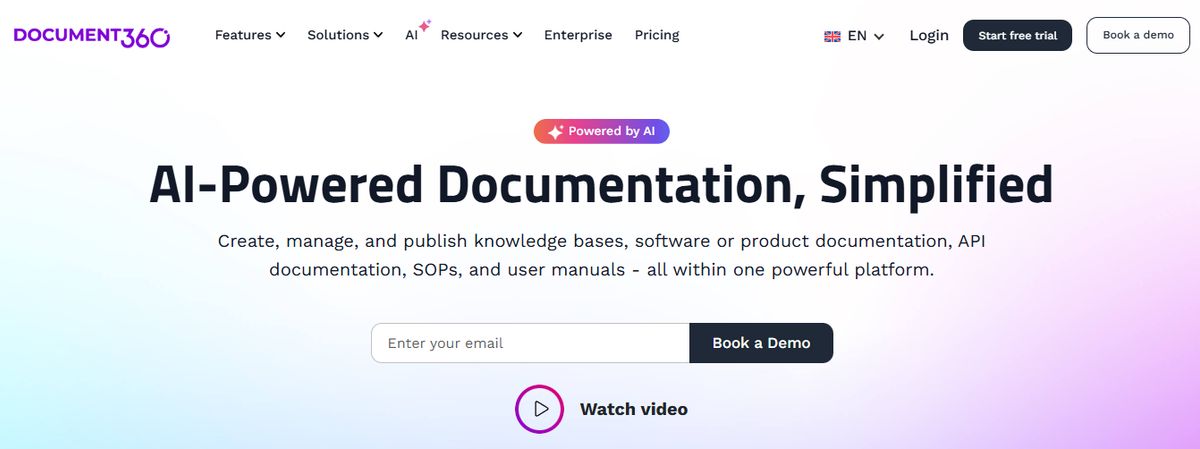
Another all-in-one workspace software for building customizable knowledge bases is Document360. This software helps you personalize your knowledge base with branded colors. It helps create dynamic, searchable, multilingual user manuals, SOPs, how-to guides, and other documents. Ideal for professionals seeking to streamline documentation processes, Document360 offers a user-friendly interface that caters to technical and non-technical users. Plus, it gives AI functionalities to simplify# tackling all documentation needs.
Pros
- Improve the context and relevance of documentation with real-time AI feedback
- Get insights into user behavior and content effectiveness to optimize knowledge management strategies
- Connect with popular tools like Slack, Microsoft Teams, Zendesk, and Intercom to build a cohesive workflow across platforms
Cons
- A few features are only available through costly add-ons
- New users might require time to leverage the platform’s extensive capabilities fully
6. Logseq
Like most note-taking apps, Logseq is designed to help you organize and manage your knowledge effectively. What sets this AI tool apart is its outline-based structure and linked references that allow you to create dynamic internal links between notes. For instance, you can link meeting notes to project tasks for smooth tracking. This Logseq feature is excellent for building a personal knowledge graph, visualizing connections between ideas, and structuring tasks or projects.
Pros
- Summarize notes, organize knowledge bases, and optimize workflows with AI tools.
- Organize notes visually with a graph view for better context.
- Manage tasks directly within notes using this markdown note-taking app.
Cons
- It’s not ideal for real-time collaborative editing and teamwork.
- Some users have reported that its built-in sync feature is unreliable, hindering productivity.
7. Apple Notes

Apple Notes is a simple but efficient note app that works across all devices. This could become your go-to tool if you’re deep into the Apple ecosystem. It’s still the most straightforward app if you work within the Apple realm—summon it anytime on my Mac from the bottom right corner, and it pops up earnestly. Syncing is mostly great; copying something on the phone and pasting it on your desktop is magic.
The little things that boost the experience. Ask more of the app, and you’ll be disappointed. Moving the text around, formatting, and indenting are not easy. Any more advanced use cases are not supported. You can save multiple types of content, including images, web links, handwritten notes, maps, PDFs, and sketches. I prefer Apple Notes’ scanning feature to scanning documents directly from my iPhone—there is no need for third-party scanners! The documents are saved directly within Notes as PDFs.
Pros
- Create notes, edit lists, organize notes into folders, and manage attachments
- Pin priority notes on top for quick access
- Add tags to sort and find notes easily
Cons
- Limited to users within the Apple ecosystem
8. DokuWiki
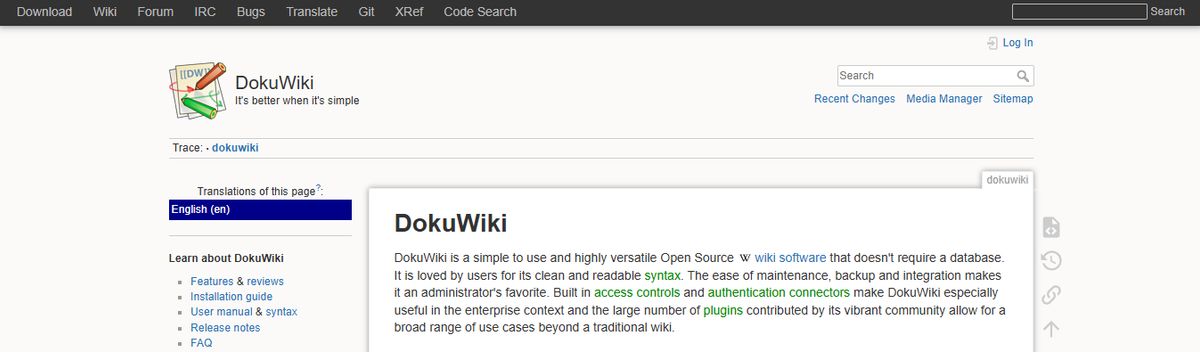
If you’re looking for an open-source alternative, DokuWiki is a great tool that doesn’t need a database. You’ll love the many plugins that extend DocuWiki’s feature set, chipped in by its buzzing community. However, it’s hard to get past its appearance. Visually, you’re stuck with something that looks like it was made when Mac was called Macintosh.
Pros
- Markdown supports
- Tons of plugin options for syntax, admin, etc.
- Templates for layout customization
Cons
- It can be challenging for non-technical users to onboard.
- The software looks dated, and there are no task management abilities.
Research 10 Times Faster with Constella
Constella reimagines note-taking with an infinite canvas that lets you capture and connect ideas effortlessly. It is powered by AI search that makes finding information instantaneous. Whether you're a researcher trying to draw connections across numerous papers or someone who wants a more intuitive way to organize your thoughts and files, Constella's AI assistant helps you build and navigate your knowledge base without the constraints of traditional folder structures.
Constella transforms how you capture, find, and connect your ideas, perfect for busy knowledge workers and researchers limited by conventional note-taking tools. Research 10 times faster with Constella's AI notes manager.
Related Reading
Want more insights like this?
Subscribe to get short productivity tips and useful summaries of new tools every week.
Want more insights like this?
Subscribe to get short productivity tips and useful summaries of new tools every week.


