

What if there was a better way to organize your notes? What if you could easily make notes and manage them with artificial intelligence? Maybe you’ve been using Workflowy for a while, but its simple interface and structure aren’t cutting it. Perhaps you just want to explore options before committing to a single tool.
Or maybe you’re facing issues with Workflowy that make it less usable for your needs. Whatever the case, alternatives to Workflowy can help you implement the Second Brain Code with more efficient, effective, and enjoyable solutions. This guide will help you discover a range of alternatives to Workflowy so you can better make and manage notes with AI.
One solution worth considering is Constella’s AI notes manager. This powerful tool helps you find, organize, and connect the dots in your notes, making it easy to work with your information, boost your productivity, and improve your creativity.
What is Workflowy?
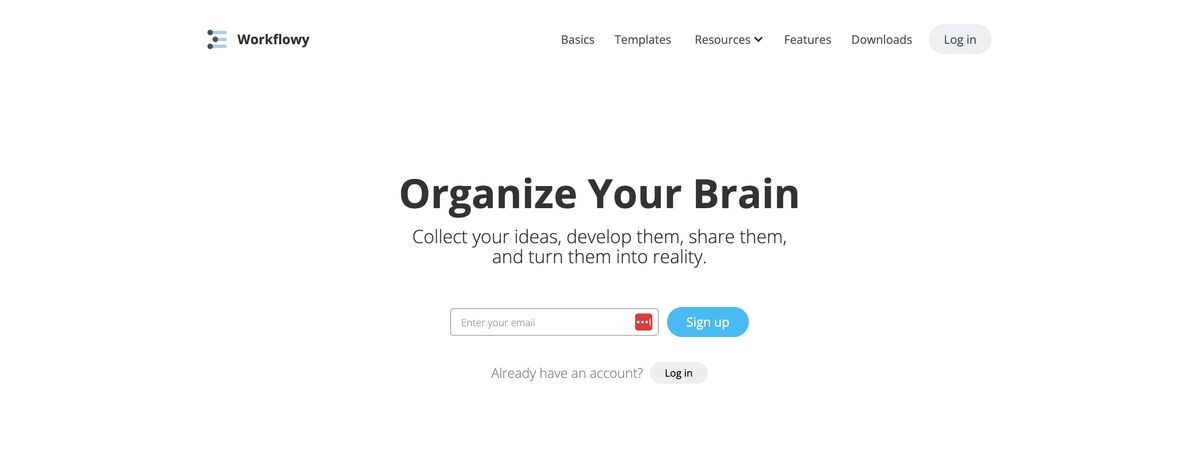
Workflowy is a straightforward, cloud-based tool for jotting notes, organizing information, and managing tasks or projects. Its clean interface helps you create, share, and track nested lists.
WorkFlowy Features & Benefits
You can create a WorkFlowy account quickly and easily. Enter a valid email address, and the platform will send you a verification code. You’ll enter that code on the sign-up page to create your account.
Workflowy is a simple to-do list app. You can add as many tasks as you want from your dashboard with a simple button click. The app’s defining feature is its text-based nested list. That is, you can add infinite loops of to-do lists under each task that you create.
For example, under the “visit the gym” task, you can create a to-do list specifying each exercise I want. Under each exercise on the list, you can select which trainer you want to perform with. Under the trainer’s name, you can choose what particular time I want to exercise, and so on.
There’s no limit to the number of nested lists you can create; this feature helps you make a solid workflow plan.
You can add tags to every task I create to help me quickly filter and visually identify them. Likewise, you can quickly search through all your tasks, no matter how bulky.
An interesting feature we observed on WorkFlowy is the use of backlinks. When typing a to-do list, you can create links to any part of a previous to-do list. This feature helps you connect different parts of your to-do lists to create an interactive workflow.
Collaboration is another noteworthy feature we observed on Workflowy. You can share a link to your list, and anyone with that link can view or edit your to-do lists, depending on your permission.
Related Reading
- Second Brain Examples
- How to Build a Second Brain
- Tiago Forte Code
- Second Brain Notion Template
- Roam Research vs Obsidian
- Notion vs GoodNotes
Workflowy Pricing Plans

Pricing Breakdown for Workflowy: Free vs Paid Plans
Workflowy offers both free and paid plans. The free version allows users to create up to 250 new monthly items. Users can refer friends to increase this limit without upgrading; each referral permanently adds 100 extra monthly items. Upon signing up, users receive a 7-day free trial of Workflowy Pro.
Workflowy Pro, the paid plan, costs $4.99 per month or $49 per year, with the annual plan offering a 20% savings. Pro features include unlimited lists, premium support, additional themes and fonts, automatic Dropbox backups, and enhanced collaboration tools.
15 Best Workflowy Alternatives for Note-Taking
1. Constella
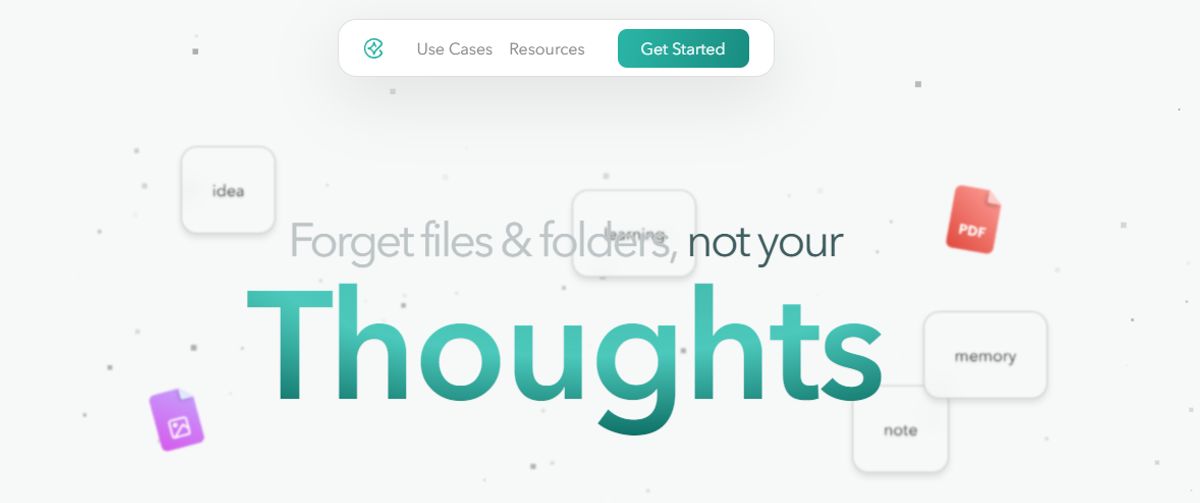
Constella completely redefines how you take notes. It offers an infinite canvas to capture and connect ideas effortlessly, powered by AI search that makes finding information instantaneous. Whether you’re a researcher trying to draw connections across numerous papers or someone who wants a more intuitive way to organize your thoughts and files, Constella’s AI assistant helps you build and navigate your knowledge base without the constraints of traditional folder structures.
Constella transforms how you capture, find, and connect your ideas, perfect for busy knowledge workers and researchers limited by conventional note-taking tools. Research 10 times faster with Constella’s AI notes manager.
2. Notion
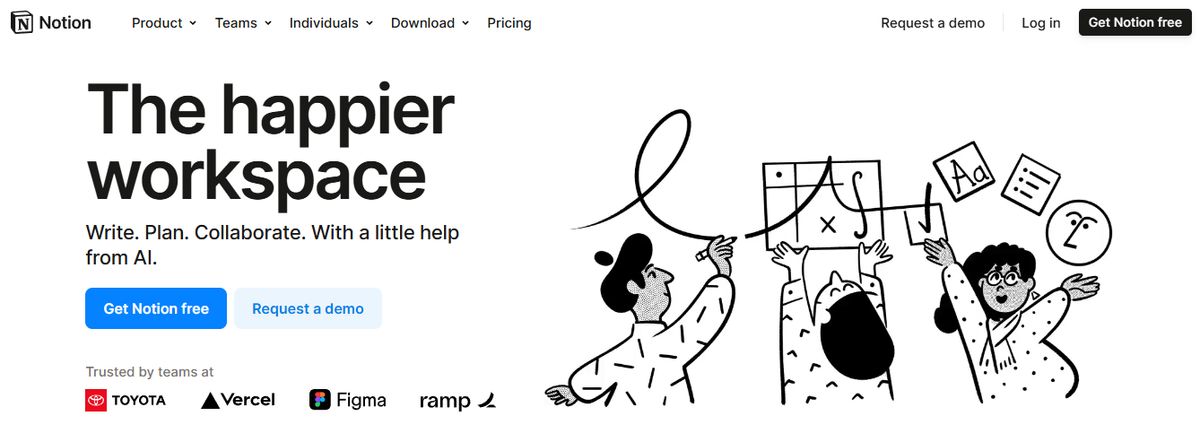
Notion’s note-taking experience supports various content types, including images, text notes, bookmarks, videos, and code. You can add these to your notes with intuitive controls such as drag-and-drop and slash commands. We loved its customization options. They allowed us to tailor our workspace for different personal and team needs, such as changing privacy settings to keep confidential meeting notes private or sharing them with team members when needed. One pet peeve the team had with Notion is the maze of organization; you’re sometimes lost in the app, and the bread crumbs aren’t always helpful.
On the other hand, it is pretty popular with people who want to create databases and wikis. The UX is sometimes hit or miss; the windows you’d like to open as separate pages often open as pop-ups. Of course, it depends on your personal preference. While testing the app, I tinkered with Notion AI to discover how it can simplify note-taking and organization. I listed a few tasks, mainly related to a new product launch, and Notion AI quickly auto-filled the steps I had to follow to accomplish those tasks. While they were not entirely accurate, the tool did a fair job.
The platform works well for cross-functional teams where collaboration is a must. Comments and real-time editing offer a smooth way to ideate with remote teams, collect and provide feedback quickly, and keep everyone on the same page.
Notion's best features
- Create custom templates and integrate your database into notes
- Access important information quickly via the sidebar
- Write and format notes using Markdown
- Focus on what you’re writing with an immersive experience that makes everything else fade away for the time being
Notion limitations
- The complex feature sets and UI can be daunting for new users
- Does not offer any screen recording or transcription feature
Pros
- Highly customizable
- Supports various content types
- Great for team collaboration
Cons
- Can be overwhelming for new users
- Organization can be confusing
3. Capacities
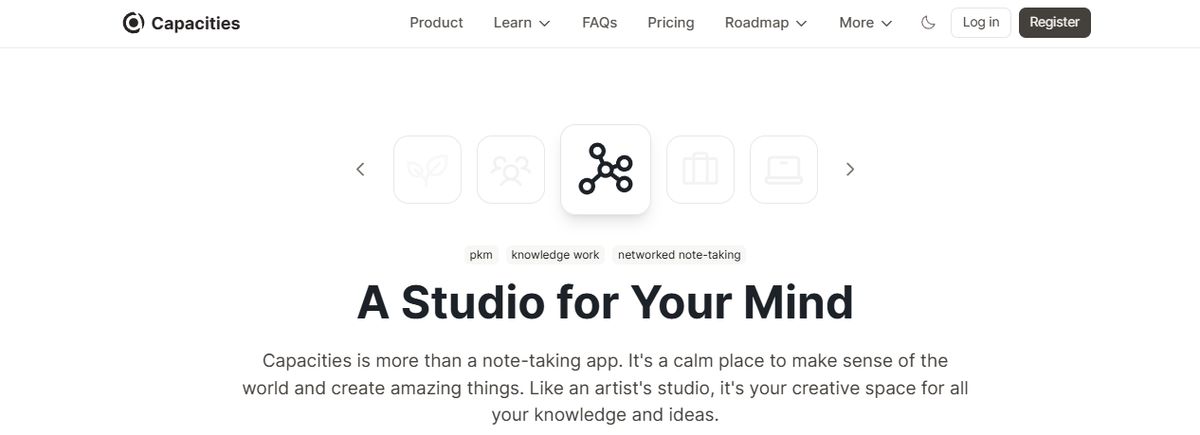
Capacities is an object-based note-taking application that focuses on building relationships between notes. It is popular for journaling, making notes, and managing personal ideas. It comes with markdown notes, local-first optionality & PKM features. It can manage daily and personal notes and organize work meetings. Many people find Capabilities to be a good balance between Notion and Obsidian.
Pros
- Beautiful Notion-like design
- It comes with a calendar mode for daily notes
- Works well offline with near-offline functionality
- Comes with AI features for chatting with notes
- Easy to use once you get started
Cons
- Lacks powerful databases
- It can be complicated for the average note-taker
4. Evernote
Evernote is a leading note-taking software that’s been around since 2008. This straightforward note-taking app set the standard for the industry alongside Microsoft OneNote. It’s popular with small teams who want to manage to-do lists, organize tasks, and (you guessed it) take notes. Instead of a visual board like Milanote, Evernote uses notebooks and tags to organize your ideas and information. It’s been around for a while but has updated features like offline file access, dark mode, and handwritten note support.
Evernote's best features
- Use specialized note-taking features like document scanning, web clipper, calendar integrations, and handwritten notes
- Organize your ideas and notes using tags that make it easy to search for the info you need
- Access basic features for individuals and small teams using the free version
- Work cross-platform with desktop and mobile apps compatible with Windows, iOS, and Android
Evernote limitations
Document organization and formatting don’t offer as many features as other note-taking tools. Users report poor compatibility with different project management tools.
Pros
- Great for managing tasks and to-do lists
- Supports various note types
- The free version is robust
Cons
- Organization can be cumbersome
- Lacks advanced note features
5. Standard Notes

Standard Notes is an open-source note-taking application. Like Logseq, the app prioritizes privacy and uses comprehensive encryption and two-factor authentication. Users can create feature-rich notes and plaintext markdown files, access their notes offline, and export their data. Different plans offer more robust note-taking formats and capabilities.
Standard Notes' best features include
- XChaCha20-Poly1305 encryption to protect sensitive notes,
- Real-time syncing across multiple devices to manage the project, and
- The option to back up notes in plain text files.
- Tagging, starring, and pinning features are only available in the paid plan.s
Standard Notes limitations
- Some note-taking features are only available in the paid plans.
- Navigating around the interface takes many clicks
Pros
- Advanced encryption for security
- Open-source
- Offers a distraction-free writing experience
Cons
- Limited features in the free version
- Can be hard to navigate
6. Microsoft OneNote
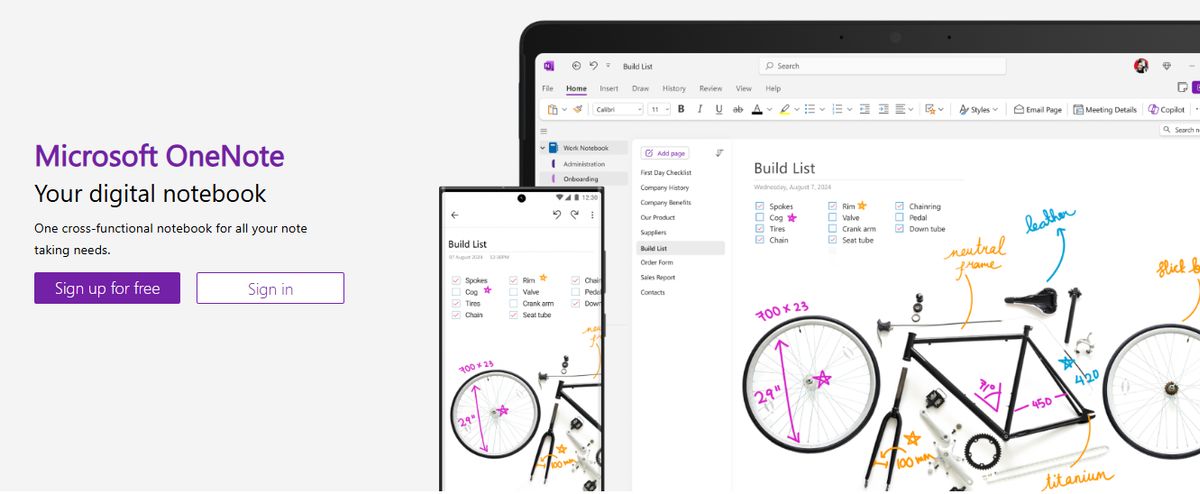
Even as a free app, OneNote is the best note-taking app we've tested. It has every feature you could want, from organizational structure to cross-platform syncing to voice notes and optical character recognition (OCR). It also comes with the best web clipping tool we've seen.
Pros
- Free version includes all features
- Excellent organizational tools
- Free-form placement of text, drawings, and attachments
- Excellent web clipper
Cons
- Local storage is only offered under Windows
- Limited OCR
7. Anytype
Anytype is an open-source, local-first note-taking application for macOS, Windows, iOS, and Android. It also has a Chrome extension for clipping notes. Anytype creates notes as objects to save notes with a structure—e.g., meeting, person, book. It also has E2E security on notes and a growing community. It is a popular Notion alternative in the local-first note-taking community with an ethos and focus on secure note-taking. Anytype uses object-based note-taking to help organize your notes with more structure.
Pros
- Enhanced security features
- Object-based note-taking for better organization
- Open-source and local-first
Cons
- Can be overwhelming for new users
- Limited database capabilities
8. Apple Notes

Apple Notes is a simple but efficient note app that works across all devices. This could become your go-to tool if you’re deep into the Apple ecosystem. It’s still the most straightforward app if you work within the Apple realm—summon it anytime on your Mac from the bottom right corner, and it pops up earnestly. Syncing is mostly great; copying something on the phone and pasting it on your desktop is magic.
The little things that boost the experience. Ask more of the app, and you’ll be disappointed. Moving the text around, formatting, and indenting are not easy. Any more advanced use cases are not supported. You can save multiple types of content, including images, web links, handwritten notes, maps, PDFs, and sketches. I prefer Apple Notes’ scanning feature to scanning documents directly from my iPhone—there is no need for third-party scanners! The documents are saved directly within Notes as PDFs.
Apple Notes’ best features
- Create notes, edit lists, organize notes into folders, and manage attachments
- Pin priority notes on top for quick access
- Add tags to sort and find notes easily
Apple Notes limitations:
- Limited to users within the Apple ecosystem.
Pros
- Very simple and easy to use
- Works smoothly across Apple devices
- Good for quick notes and lists
Cons
- Limited to users within the Apple ecosystem
- Lacks advanced features for complex note-taking
9. Roam Research
Roam Research is a second-brain application that bidirectionally links information for easy searching and organizing. Like many Logseq alternatives, the app includes Markdown support, and Markdown notes have similar tools and functions. Roam operates primarily as a personal knowledge base rather than a tool for teams or organizations. Users can customize their themes and add tasks to their notes; the information is stored in the cloud.
Roam's best features
- Easy bi-directional links for interconnected thoughts and ideas,
- Hierarchy-based note organization for easy reorganizing and remixing,
- a straightforward interface
Roam limitations
- The collaboration capabilities are minimal
- The integration options are limited.
Pros
- Excellent for managing a personal knowledge base
- Easy to use and intuitive interface
- Robust bi-directional linking features
Cons
- Limited collaboration tools
- Lacks advanced integrations
10. Miro
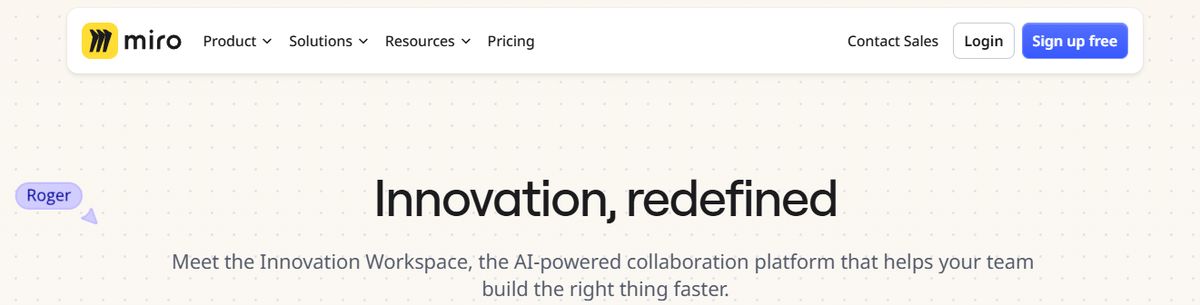
Miro is a mind-mapping tool for teams that want to capture, structure, and organize their ideas. It facilitates smooth collaboration using chat and commenting, auto-organizes mind maps with a single click, and adds content to an infinite canvas to illustrate your ideas. As a super-flexible Milanote alternative, Miro shines with features like screen sharing, presentation mode, and team conferencing. It boasts a library of user-friendly templates to help smooth out the learning curve regardless of what project you’re working on.
Miro's best features
- Use the whiteboard for creative brainstorming, the mind map to capture ideas, and the planning board to create a visual representation of each project
- Import Microsoft Excel and Google Sheets spreadsheets with the click of a button, thanks to Miro’s integrations
- Use the social media calendar template to track your campaign ideas, make notes on projects, and keep your team on track across all your social profiles
- Create custom tools and plugins using HTML, JavaScript, and CSS
Miro limitations
- The free plan is limited to a single workspace, which some teams with multiple users find too limiting
- Some users report bugs with the text editor and drag-and-drop functions, plus a need for Markdown support in the notes app.
Pros
- Excellent collaborative features
- Highly visual interface
- Robust template library
Cons
- Free plan limits you to one workspace
- Some users report bugs
11. Joplin
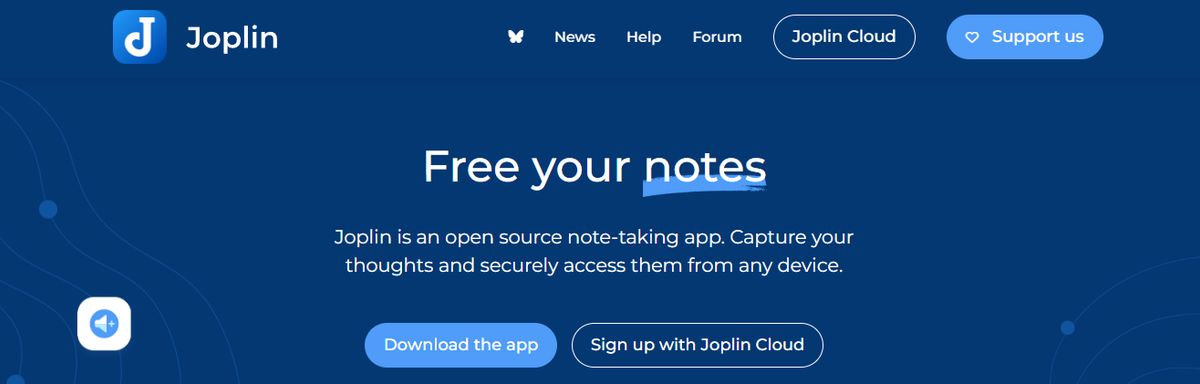
Joplin is a simple note-taking app that’s easy for beginners and offers more complex features for experienced digital note-takers. The open-source program is compatible with dozens of plugins for easy note-sharing and integration across different tools, has an active community, and offers end-to-end encryption for very secure notes.
Joplin's best features
- Robust note security
- Easy Microsoft
- OneNote and Evernote importation into Joplin
- Collaborative note-sharing tools
- Web-clipping tools for easy note-taking
- A distraction-free writing environment.
Joplin limitations
- The free plan’s restrictive size limits
- The app has fewer features than other note-taking tools.
Pros
- Open-source and free
- Strong security features
- Easy to import notes from other programs
Cons
- Size limits on free accounts
- The user interface is a bit basic
12. Google Keep
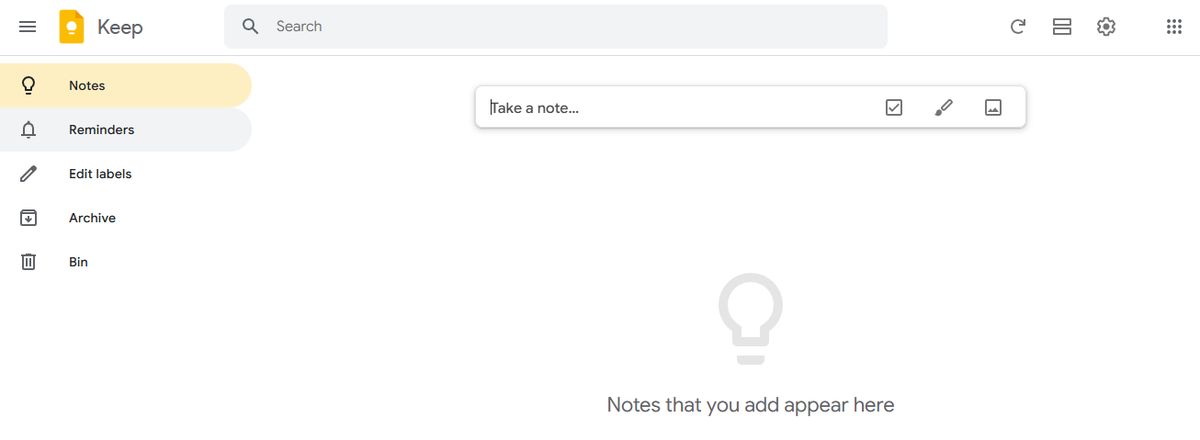
Google Keep allows users to effortlessly capture content, including notes, lists, photos, and audio, and organize it on a digital bulletin board. Sharing notes among family and friends is simple. For example, you can share a shopping list and see updates in real time as items are checked off—there is no need for back-and-forth communication. I like Google Keep’s voice note feature.
When I’m in a rush and need to jot down something important, I can simply record a voice memo instead and transcribe it into text later—fast and efficient! Like Apple Notes, anything more complex or advanced you want from the tool is a struggle. You might think Google would make more effort to combine the Keep experience with Google Tasks and Calendar, but it hasn’t happened. They continue to be disparate experiences, which can be frustrating if you want an all-in-one software or expertise.
Google Keep’s best features
- Get reminded of your to-dos at the right place and at the right time with time-based and location-based reminders
- Organize notes using labels and colors.
- Integrate your notes smoothly with Google Docs,
- Calendar, and other apps within the
- Google ecosystem
- Pin notes to your device home screen and stay on top of priority tasks
Google Keep limitations
- More suitable for quick notes rather than detailed, lengthy note-taking
- The features are too essential for complex note organization.
Pros
- Very easy to use
- Excellent for collaboration
- Good voice note feature
Cons
- Lacks advanced features
- Limited to simple note-taking
13. Foam
Foam is a free, open-source personal knowledge management application that uses Visual Studio and GitHub to publish notes. Users can create a Foam workspace and develop a series of Markdown documents covering a single topic. The platform includes graph visualizations for backlinking and connecting issues. Roam Research inspired Foam, so expect to see some similarities. You can share content, access it on different devices, and post it on GitHub Pages.
Foam's best features
- Notes that connect to create a second-brain-style organization schema.
- The ability to auto-complete notes with Wikilinks.
- Collaboration tools.
Foam limitations
- Foam requires a GitHub account and familiarity with the platform.
- The app is not user-friendly for personal and professional users seeking a simple interface.
Pros
- Open-source and free
- Excellent for visualizing connections between notes
- Supports Markdown formatting
Cons
- Requires a GitHub account
- Not user-friendly for beginners
14. Asana

Asana is a leading work and project management tool that helps teams of all sizes execute their ideas and stay on deadline. It excels in to-do list management with fantastic progress tracking for tasks. The user-friendly interface lets users change views, prioritize tasks, and take project-specific notes. Asana might be the way to go if you’re looking for a more organized Milanote alternative and are okay with losing the free-form brainstorming feature. Use its project milestones, custom fields, and task dependencies to make life easier for your whole team.
Asana's best features
- Keep track of project progress, notify all members of your team when tasks are updated, and leave comments with @ mentions for real-time communication
- Get to work faster thanks to the clean interface that minimizes the learning curve for team members
- Choose between Board, List, or Timeline views to visually organize your project in a way that works for you
- Use automations to handle the small things and save your team members time
Asana limitations
- Some teams report a lack of customization features for the dashboard and project tracking features
- Some reviews mention a lack of advanced features and flexibility using the free plan (across multiple devices)
Pros
- Excellent for team collaboration
- Easy to use and navigate
- Flexible project organization options
Cons
- Limited customization options
- Free plan lacks features found in the paid version
15. Obsidian
Obsidian is a note-taking app useful for people like me who have hundreds or thousands of notes on their devices. What I love the most about this tool is the inter-linking and bi-directional linking—you can create connections between notes, ideas, people, places, and more. For example, I saved multiple notes on different marketing campaigns, all for the same product. Linking helped me keep everything integrated and access relevant notes quickly. An interactive graph also identifies hidden patterns within notes and visualizes their relationship.
Obsidian's best features
- Brainstorm, research, and ideate on Canvas—your personal space
- Track version history of notes for up to one year
- Curate a personalized experience with plugins and themes
- Control which files you want to sync with which devices
Obsidian limitations
- Collaborating with others on notes is a complex process
- Primarily a desktop app; the mobile version is not as robust or user-friendly
Pros
- Excellent for managing a large number of notes
- Bi-directional linking helps with organization
- Allows for a high degree of customization
Cons
- Can be difficult for beginners
- Collaboration tools are lacking

The Good Stuff: Pros of Workflowy
1. Infinite Nesting
Workflowy allows you to dig deep into details. I often start with a broad idea and then break it into smaller parts. This method helps me think more clearly and stay organized.
2. Clean Interface
The design is clean and focused. There’s nothing to distract you from your work. I like how easy it is to navigate through my lists and find what I need.
3. Easy Teamwork
Sharing your work with others is straightforward. I’ve worked with teammates who didn’t even have a Workflowy account, yet collaboration was smooth, making our projects run more efficiently.
4. Quick Search Capabilities
As your lists grow, searching becomes essential. I’ve saved so much time by quickly finding the information I need. It’s a feature I rely on every day.
5. Automatic Backups
Losing data is always a fear, but Workflowy’s Dropbox backup feature eases that worry. I’ve experienced data loss before, and knowing my work is safe is comforting.
The Bad Stuff: Cons of Workflowy
1. Limited Free Plan
The free version only gives you limited bullets and uploads each month. I hit this limit quickly when my project grew. This limitation pushed me to consider the Pro version.
2. Few Advanced Features
Workflowy’s simplicity can be a drawback. I use other productivity apps, and their lack of integration feels like a missed opportunity.
3. Minimal Customization
While the interface is clean, it doesn’t offer much room for personalization. I like to make my workspace my own, so this lack of customization can be frustrating.
4. Initial Learning Curve
When I first started using nested lists, getting used to them took me a while. But once I did, it became second nature. The learning curve might be steep for some, but the payoff is worth it.
Constella: Transforming Note-Taking into an Intuitive Experience
Constella reimagines note-taking with an infinite canvas that lets you capture and connect ideas effortlessly, powered by AI search that makes finding information instantaneous. Whether you're a researcher trying to draw connections across numerous papers or someone who wants a more intuitive way to organize your thoughts and files, Constella's AI assistant helps you build and navigate your knowledge base without the constraints of traditional folder structures.
Constella transforms how you capture, find, and connect your ideas, perfect for busy knowledge workers and researchers limited by conventional note-taking tools. Research 10 times faster with Constella's AI notes manager.
Related Reading
- Roam Research Alternatives
- Amplenote vs Notion
- NotePlan Alternative
- Amplenote vs Obsidian
- Heptabase vs Obsidian
- Notion vs Evernote
Research 10 Times Faster with Constella
Constella reimagines note-taking with an infinite canvas that lets you capture and connect ideas effortlessly. It is powered by AI search that makes finding information instantaneous. Whether you're a researcher trying to draw connections across numerous papers or someone who wants a more intuitive way to organize your thoughts and files, Constella's AI assistant helps you build and navigate your knowledge base without the constraints of traditional folder structures.
Constella transforms how you capture, find, and connect your ideas, perfect for busy knowledge workers and researchers limited by conventional note-taking tools. Research 10 times faster with Constella's AI notes manager.
Related Reading
Want more insights like this?
Subscribe to get short productivity tips and useful summaries of new tools every week.
Want more insights like this?
Subscribe to get short productivity tips and useful summaries of new tools every week.


