
Consider you’ve just wrapped up a chaotic week at work. You had a big project due, and as you rushed through the week, you barely managed to collect notes and resources from your research. Now that the project is done, you want to organize those notes so you can retrieve information from them in the future. You open the app you used to store your notes, and it’s a jumbled mess. Sound familiar? If you’ve experienced this before, you’re not alone.
Organizing notes and research materials is a common goal for many of us. In this guide, we’ll compare Notion vs GoodNotes to help you see which app suits your style for managing notes with AI as part of a Second Brain Code. What's the Second Brain Code? It’s the method developed for organizing notes and research materials so you can retrieve information from them in the future.
The method uses AI tools to help you manage your notes and improve productivity. The more organized your notes are, the quicker you’ll be able to find the precise information you need to tackle your next project and reduce stress. AI Notes Manager by Constella is a great tool that can help you achieve your goal of organizing your notes. It works with Notion and helps you automatically categorize your notes to improve organization.
What is Notion?
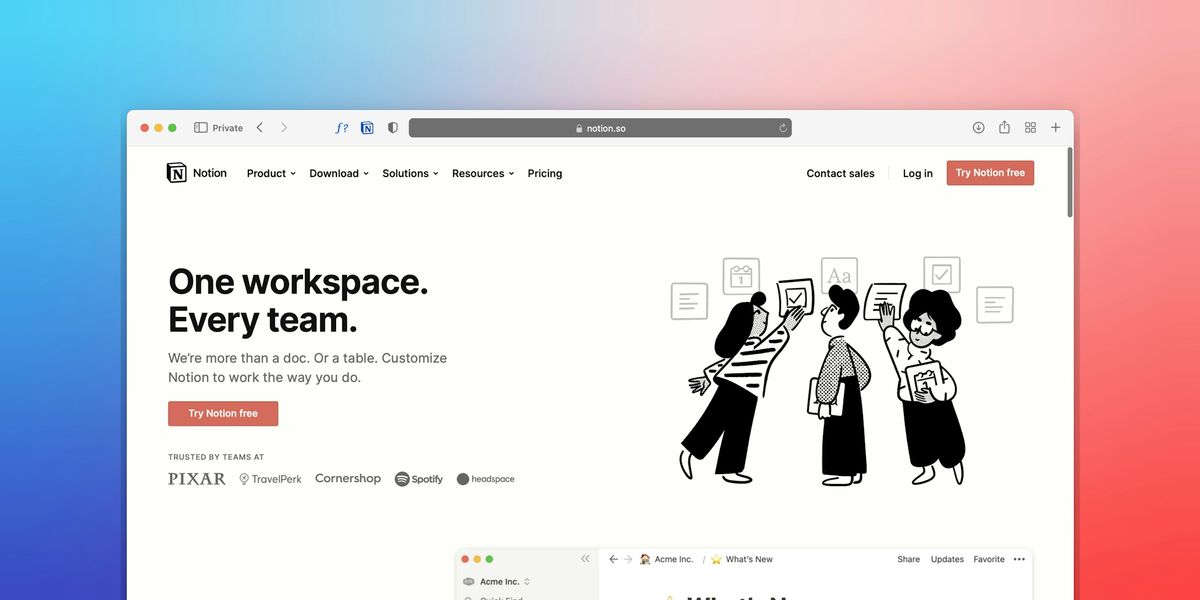
Notion is a powerful productivity tool that blends note-taking, task management, and organization into one customizable platform. Its intuitive interface makes it easy to use and navigate. However, what sets Notion apart is its flexibility. You can organize your Notion workspace however you want, creating a system that suits your unique preferences and needs. Notion is also highly customizable, with various templates, built-in databases, and widgets. You can use Notion to create your personalized second brain.
What is GoodNotes?
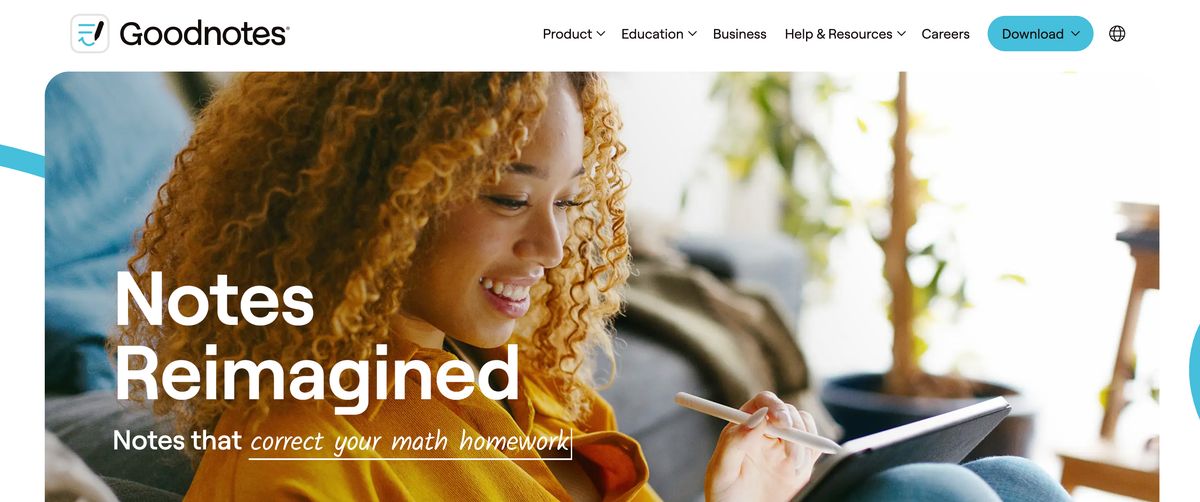
GoodNotes is a digital note-taking app that allows users to create and organize handwritten and typed notes on virtual paper. The app offers an intuitive, distraction-free environment for taking organized notes for work, study, or personal use. GoodNotes uses styluses to help make you more productive on the go. Popular among Apple users with Apple Pencils and iPads, the app now comes on web, Android, and Windows devices.
How Does GoodNotes Work?
Goodnotes is similar to Apple Freeform; however, it offers natural handwriting and organizing, whereas Apple Freeform provides a free-form canvas for open-ended notes. Many people create Goodnotes templates like journals, diaries, project plans, etc. These templates help you start with GoodNotes, boost productivity, or learn something new. Goodnotes is fantastic for personal use. It turns your iPad into a paperless device, replacing note-taking, drawing, brainstorming, and more with a digital space for which you can customize, share, and download templates.
What is Constella?
Constella reimagines note-taking with an infinite canvas that lets you capture and connect ideas effortlessly. Whether you're a researcher trying to draw connections across numerous papers or someone who wants a more intuitive way to organize your thoughts and files, Constella's AI assistant helps you build and navigate your knowledge base without the constraints of traditional folder structures.
Constella transforms how you capture, find, and connect your ideas, perfect for busy knowledge workers and researchers limited by conventional note-taking tools. Research 10 times faster with Constella's AI notes manager.
Related Reading
- Second Brain Examples
- How to Build a Second Brain
- Tiago Forte Code
- Second Brain Notion Template
- Roam Research vs Obsidian
Notion vs GoodNotes Detailed Comparison

User Interface: Which App Makes Digital Note Taking Easier?
Notion’s interface is modular. You create pages and fill them with blocks like text, images, to-do lists, and databases. This flexibility allows for extensive customization, but newcomers may find it overwhelming. GoodNotes provides a more straightforward interface focused on handwriting and drawing. It features customizable pens, highlighters, and a bevy of paper templates. Users who prefer a traditional note-taking feel will find it intuitive.
Features: What Tools Help You Get More Organized?
Notion has a range of features to help you get organized. It offers:
- Customizable templates for notes, projects, and databases.
- Real-time collaboration with team members.
- Integration with third-party apps like Trello, Asana, and Slack.
- Offline access with synchronization upon reconnection.
GoodNotes has a narrower focus but offers some powerful tools for handwritten notes, including:
- Handwriting recognition that converts handwritten notes into searchable text.
- Annotation tools for PDFs and other documents.
- Customizable writing tools and paper templates.
- Notes are organized into notebooks and folders.
Pricing: Which One Is More Affordable?
Notion operates on a freemium model. It offers a free version with essential features and paid plans that unlock advanced functionalities. GoodNotes requires a one-time purchase that grants full access to its features without recurring fees.
User Reviews: What Do Real Users Say About Notion and GoodNotes?
Notion has an overall rating of 4.7 out of 5 on Software Advice. Users give it high marks for value for money and customer support. They appreciate its versatility and customization options but note that it can be slow to start up and may have a learning curve. GoodNotes holds an overall rating of 4.6 out of 5, with users praising its handwriting capabilities and intuitive interface. Some desire improved text box features and better integration with keyboards.
Related Reading
- Roam Research Alternatives
- Amplenote vs Notion
- NotePlan Alternative
- Amplenote vs Obsidian
- Heptabase vs Obsidian
- Notion vs Evernote
8 Best Notion and GoodNotes Alternatives
1. Constella: Note-Taking Reimagined
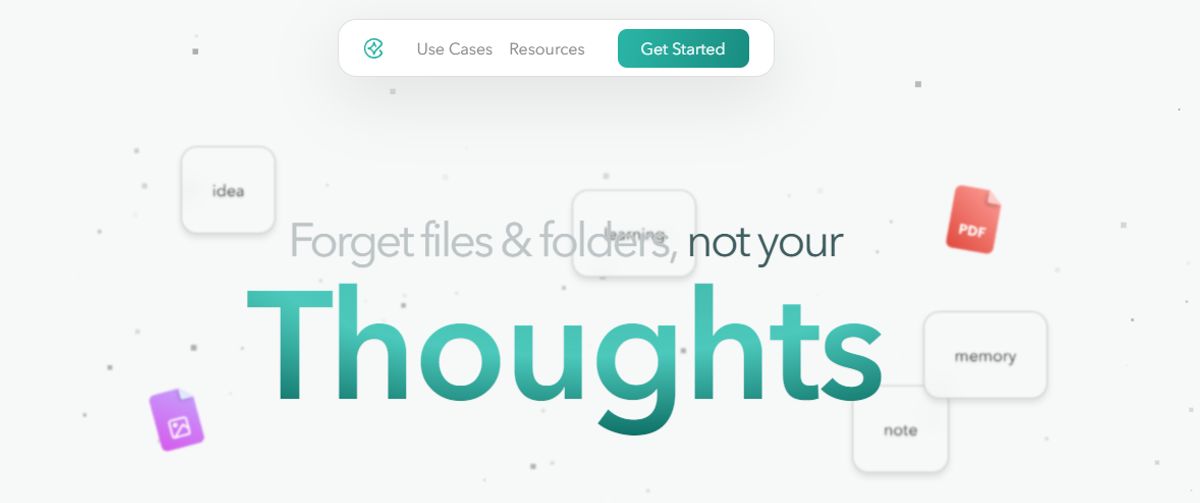
Constella transforms note-taking with an infinite canvas. Capture and connect ideas effortlessly with this unique approach to information organization. Supported by an AI search that makes finding information instantaneous, you can research 10 times faster with Constella’s AI notes manager.
Whether you're a researcher trying to draw connections across numerous papers or want a more intuitive way to organize your thoughts and files, Constella helps you build and navigate your knowledge base without the constraints of traditional folder structures. Constella transforms how you capture, find, and connect your ideas, making it perfect for busy knowledge workers and researchers limited by conventional note-taking tools.
2. Evernote: The Timeless Classic
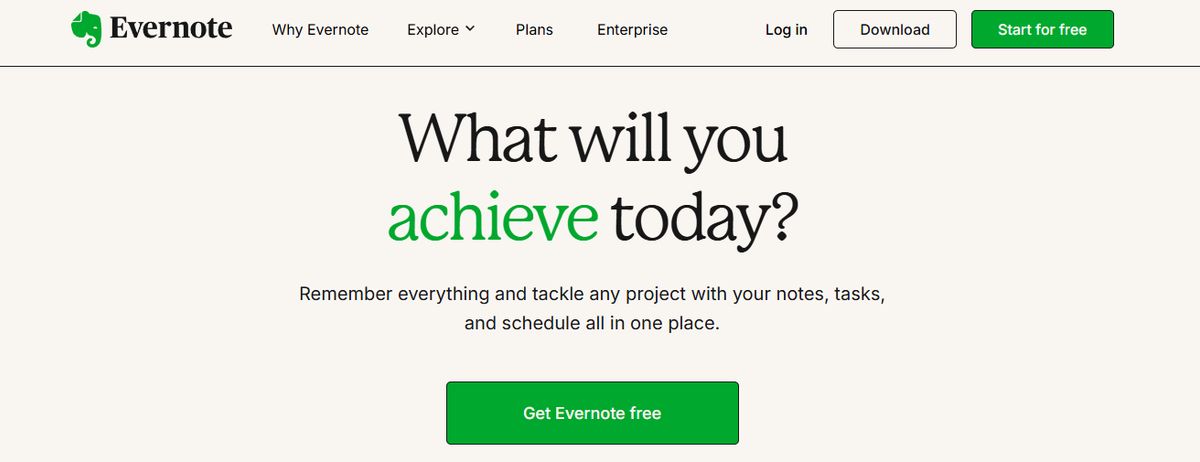
Evernote is a classic note-taking app that has stood the test of time. With a suite of features that supports note-taking, task management, and collaboration, Evernote is a versatile tool that can accommodate all kinds of workflows.
Integrations with ClickUp, Google Calendar, and Slack allow users to bring their existing operations into Evernote and keep everything organized in one place. The powerful search functionality makes locating information across notes, tasks, PDFs, images, and more manageable. Plus, the tool is accessible offline, so you can continue working without an Internet connection.
Pros
- Robust features and templates are versatile.
- Powerful search functionality for quick information retrieval.
- Offline accessibility for convenient use anywhere.
Cons
- Limited free version that pushes users towards a premium subscription.
3. Apple Notes: The Simple Note App for Apple Users
Apple Notes is a simple but efficient note app that works across all devices. This could become your go-to tool if you’re deep into the Apple ecosystem.
It’s still the most straightforward app if you work within the Apple realm—summon it anytime on your Mac from the bottom right corner, and it pops up earnestly. Syncing is mostly great; copying something on the phone and pasting it on your desktop is magic. It's the little things that boost the experience.
Ask more of the app, and you’ll be disappointed. Moving the text around, formatting, and indenting are not easy. Any more advanced use cases are not supported.
You can save multiple types of content, including images, web links, handwritten notes, maps, PDFs, and sketches.
Pros
- Efficient interface for easy note organization and retrieval.
- Great scanning features for digitizing documents.
- Smooth syncing across Apple devices.
Cons
- Limited to users within the Apple ecosystem.
4. Obsidian: The Note-Taking App for Heavy Lifters
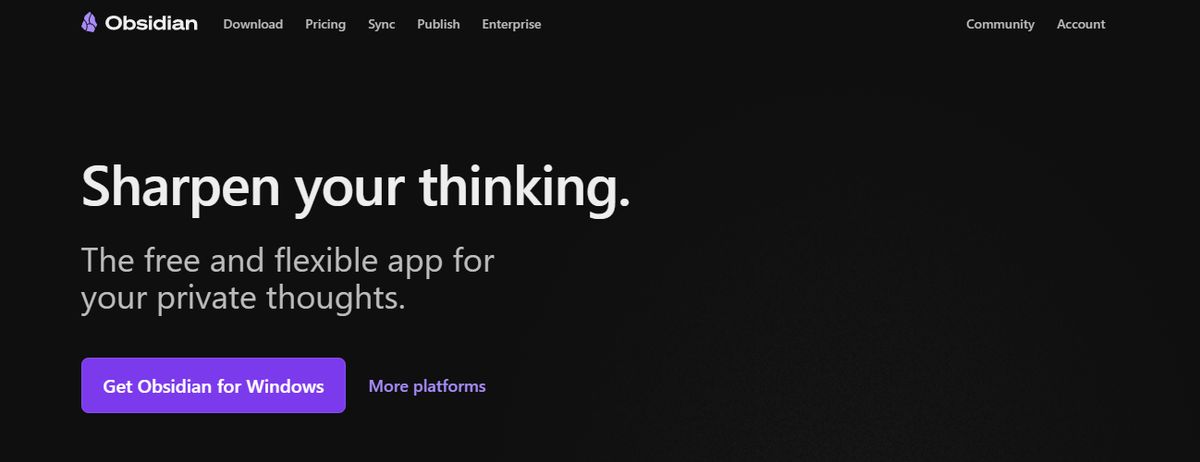
Obsidian is a helpful note-taking app for people like me that has hundreds or thousands of notes on their devices.
What I love the most about this tool is the interlinking and bidirectional linking—you can connect notes, ideas, people, places, and more.
For example, I saved multiple notes on different marketing campaigns, all for the same product. Linking helped me keep everything integrated and access relevant notes quickly. An interactive graph also identifies hidden patterns within notes and visualizes their relationship.
On that note, I’ve been a big fan of Obsidian and Notion. But if I have to assess Notion vs Obsidian head-to-head, I’ll pick Notion any day, as its note-sharing and collaboration features are way smoother. Obsidian is excellent if you want to spend much time using the tool. If you’re looking for collaboration or integration features where you can push out information or tasks to support your productivity workflow, it’s not built for that.
Pros
- Brainstorm, research, and ideate on Canvas, your personal space.
- Track version history of notes for up to one year.
- Curate a personalized experience with plugins and themes.
- Control which files you want to sync with which devices.
Cons
- Collaborating with others on notes is a complex process.
- Primarily a desktop app; the mobile version is not as robust or user-friendly.
5. Simplenote: The Minimalist Note App
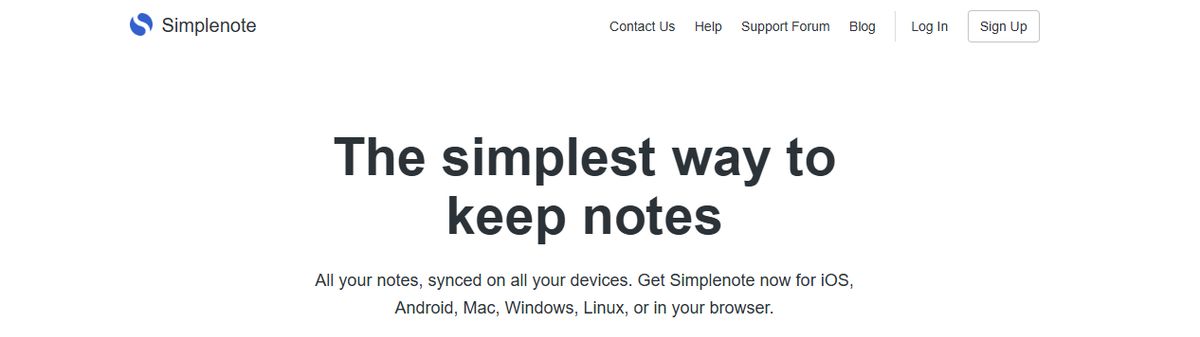
Simplenote is a no-fuss note-taking app that syncs across multiple devices and platforms, including Android, iOS, Mac, Windows, Linux, and web browsers. Notes update automatically in real time across all devices—there’s no need to look for a ‘sync’ button!
The version history feature was the most useful. Sometimes, I create a detailed note on a topic, and once the job is done, I edit the note with new content. Later, if I want to retrieve that note, it’s not possible anymore.
Simplenote is a savior in such cases—it backs up notes with every change, so I can look up what I had written down days, weeks, or even months ago.
The interface is quite similar to Apple Notes, but there’s no option to add images or sketches.
Pros
- Organize notes using tags and retrieve them quickly with the instant search functionality of this Android note-taking app.
- Collaborate with friends and team members by sharing lists, posting instructions, or publishing notes online.
- Write, preview, and publish notes in Markdown format.
Cons
- No option to insert tables.
- It lacks any aesthetic appeal.
6. Microsoft OneNote: The Freeform Note-Taking App
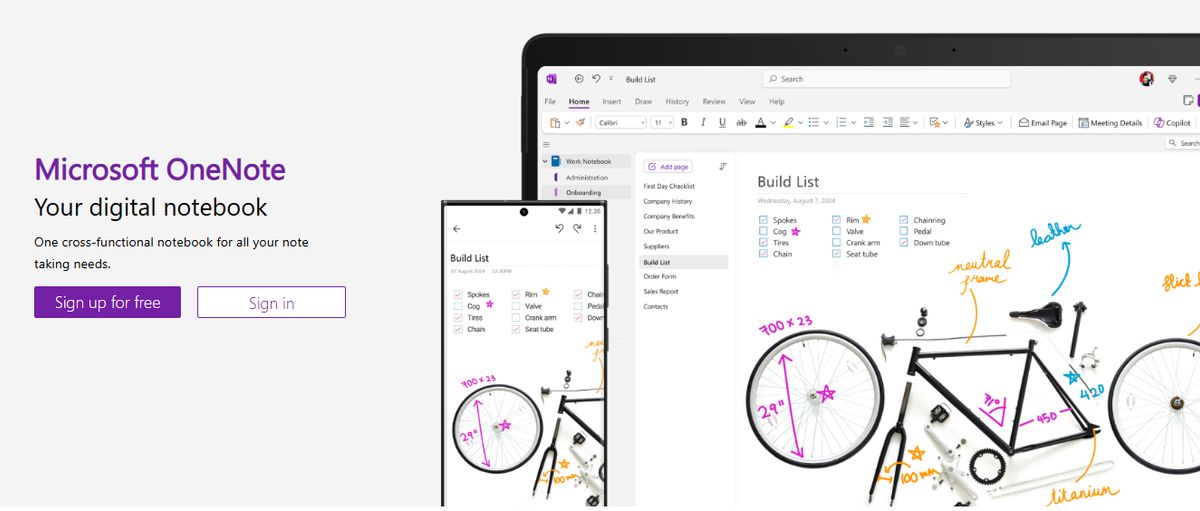
Microsoft OneNote provides note-taking tools for different inputs, including typing, handwriting, and drawing.
You can incorporate content from the web directly into your notes, refining the research and documentation process. I’ve always found OneNote’s organization to be great. It’s so simple to get to what you’re looking for with the fewest clicks. The other thing I love is that the app is less rigid and more fluid across text, numbers, and images.
You can quickly add a formula, a table, or an image to the same note. I appreciate the fluidity of this approach—it feels like a natural note-taking and journaling experience.
OneNote templates provide a convenient starting point for organizing notes, whether you’re planning a project, tracking tasks, or journaling.
Our team tested its relatively smooth collaboration features. You can work in tandem (on grocery lists, party shopping, or work to-dos) with family members or your team, and your notes get updated in real time. The Microsoft suite’s interconnectedness always makes it its USP and limitation—it depends on who you ask.
Pros
- Recreate the feel of a physical binder with separate sections and pages in the Digital Notebook Layout.
- Convert handwritten notes to typed text.
- Sync your notes across devices and platforms, keeping the continuity of thought intact.
- Access your notes even when you’re offline.
Cons
- Users need to have a Microsoft 365 subscription to access the tool.
- It provides integration mainly with Microsoft products, which is limited for users of other ecosystems.
7. Google Keep: The Colorful Note App
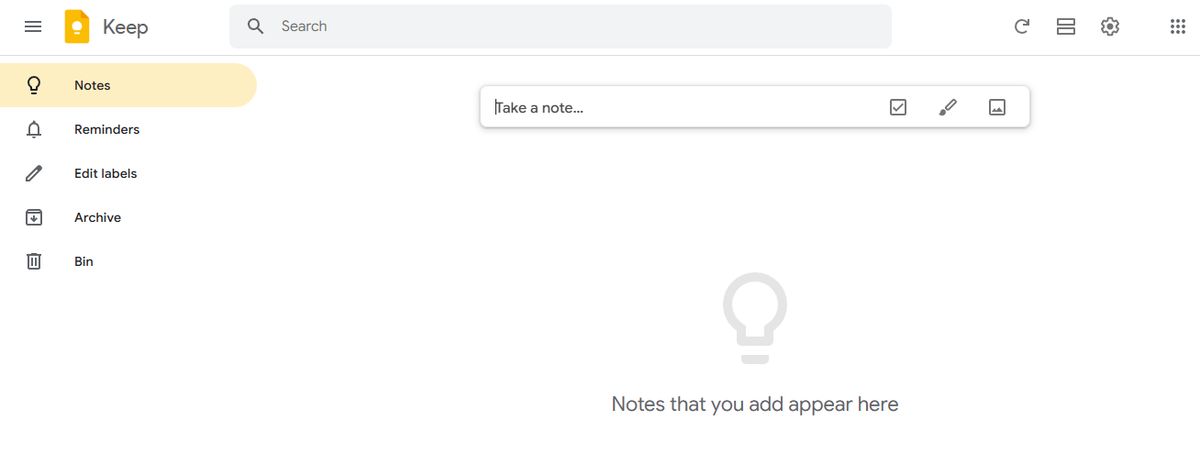
Google Keep allows users to effortlessly capture content, including notes, lists, photos, and audio, and organize it on a digital bulletin board.
Sharing notes among family and friends is simple. For example, you can share a shopping list and see real-time updates as items are checked off—there is no need for back-and-forth communication.
I like Google Keep’s voice note feature. When I’m in a rush and need to jot down something important, I can record a voice memo instead and transcribe it into text later—fast and efficient!
Like Apple Notes, anything more complex or advanced you want from the tool is a struggle. You might think Google would make more effort to combine the Keep experience with Google Tasks and Calendar, but it hasn’t happened. They continue to be disparate experiences, which can be frustrating if you want all-in-one software or expertise.
Pros
- With time-based and location-based reminders, you can remember your to-dos at the right place and time.
- Organize notes using labels and colors.
- Integrate your notes smoothly with Google Docs, Calendar, and other apps within the Google ecosystem.
- Pin notes to your device home screen and prioritise priority tasks.
Cons
- It is more suitable for quick notes than detailed, lengthy note-taking.
- The features are too essential for complex note organization.
8. Joplin: The Open-Source Note App
Joplin is an open-source note-taking application that helps you put your thoughts into words and securely access them across Windows, MacOS, Linux, and iOS. The tool supports multimedia notes, including images, videos, PDFs, and audio files.
Its sharing and collaboration features are smooth. It allowed me to share my notes with friends, family, and colleagues and work alongside them on the notes without hassle.
There was also an option to save a note (on the Internet) and share the link with others—an easy way to share task lists, company wikis, or meeting notes with a large group of people.
Joplin offers extensive customization options through plugins, custom themes, and text editors (such as Rich Text and Markdown), ensuring you can tweak the tool to your liking.
While it’s an open-source app, it maintains data privacy with End-To-End Encryption (E2EE). Your notes will be accessible only to you unless you choose to share them.
Pros
- Format your notes with Rich Text or Markdown.
- Save web pages or take screenshots directly with the Web Clipper extension (available for Chrome and Firefox).
- Work offline and take down notes on the go.
Cons
- The interface is not as user-friendly as some commercial options, limiting its appeal to less tech-savvy users.
- Syncing requires more setup than other mainstream note apps.
Research 10 Times Faster with Constella
Constella is a next-gen note-taking tool that uses an infinite canvas to help you capture and connect your ideas visually. Instead of forcing you into rigid folders and traditional ways of organizing your notes, Constella gives you the flexibility to build a personal knowledge base that works for you. The app’s AI assistant helps you quickly navigate this knowledge base to find the needed information. With this powerful tool, you can research ten times faster!
Related Reading
Want more insights like this?
Subscribe to get short productivity tips and useful summaries of new tools every week.
Want more insights like this?
Subscribe to get short productivity tips and useful summaries of new tools every week.


