Open AI Second Brain. It walks you through the rest, one screen at a time. Most screens take a few seconds.
Swipe for the next screen →
1
Open it
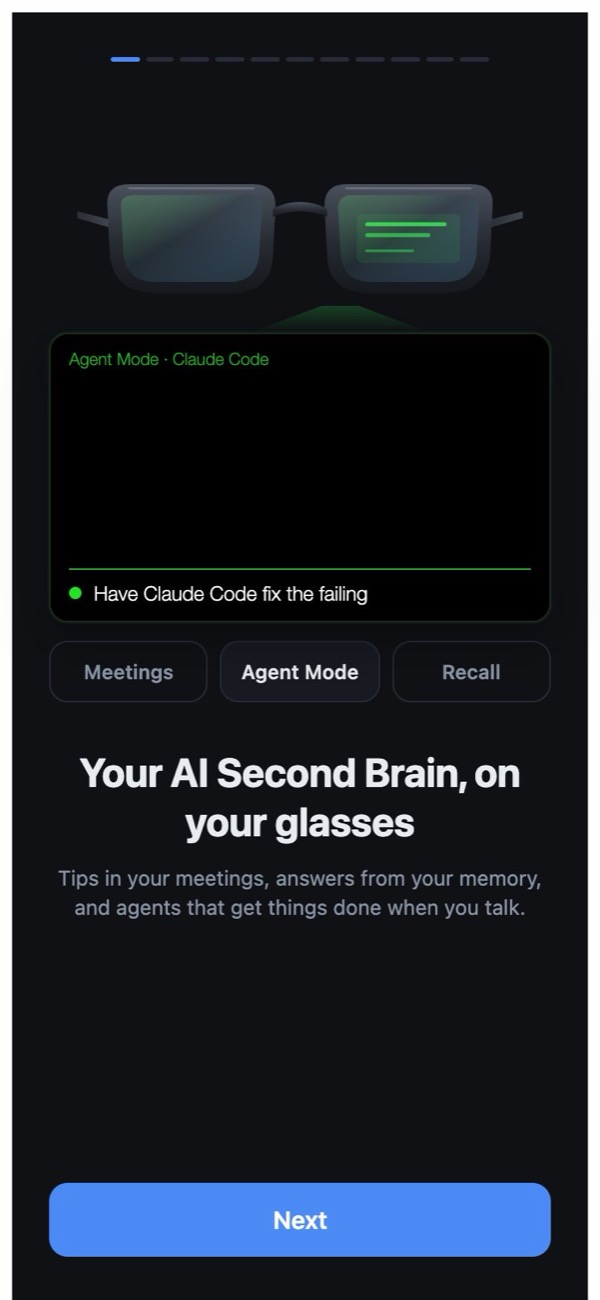
In the Even app, open AI Second Brain and tap Next.
2
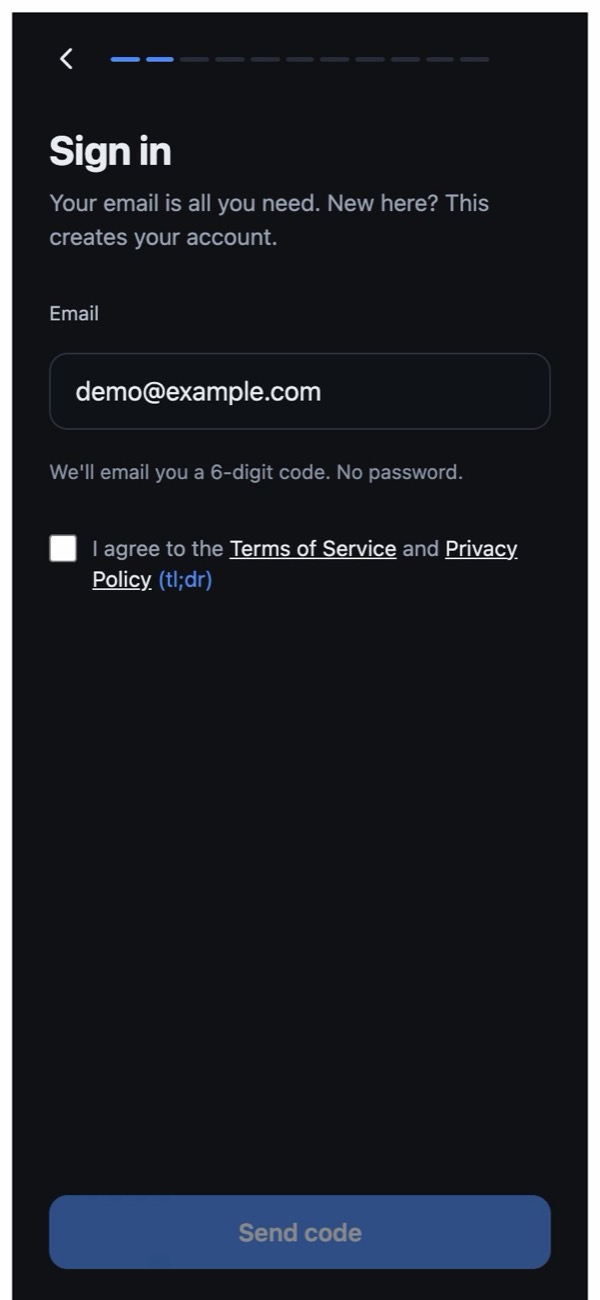
Sign in with your email
Tick the box, tap Send code, then type the 6-digit code we email you. Your glasses link on their own. New here? This makes your account.
3
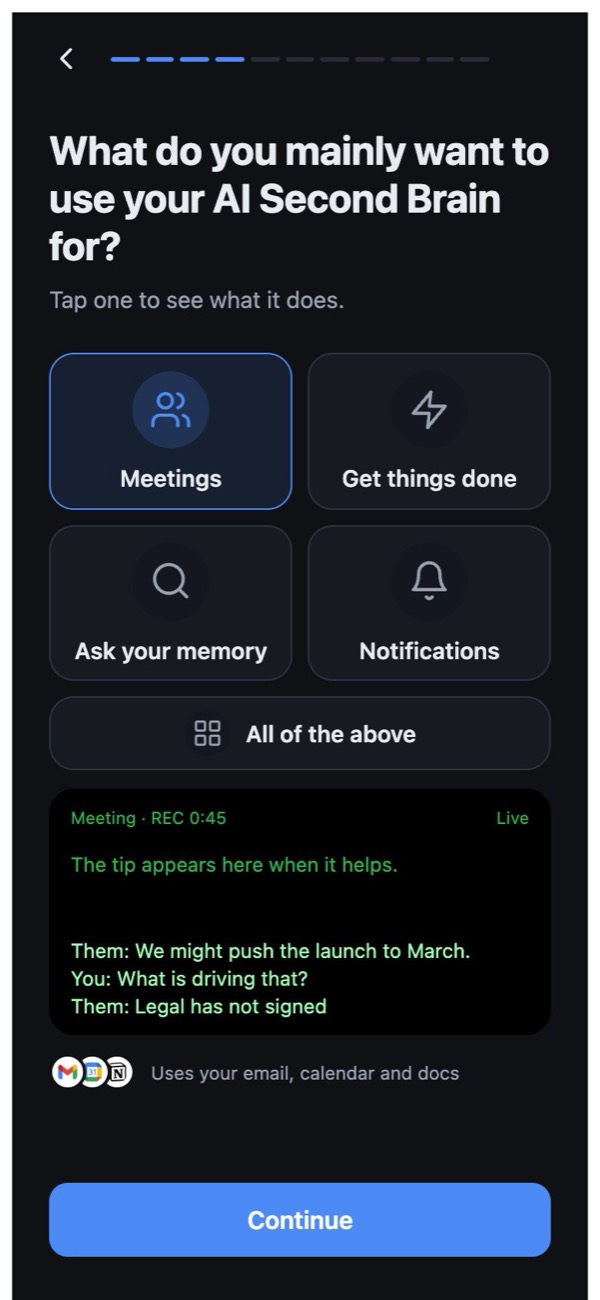
Pick what it is for
Meetings, getting things done, your memory or alerts. Not sure? Pick all of the above.
4
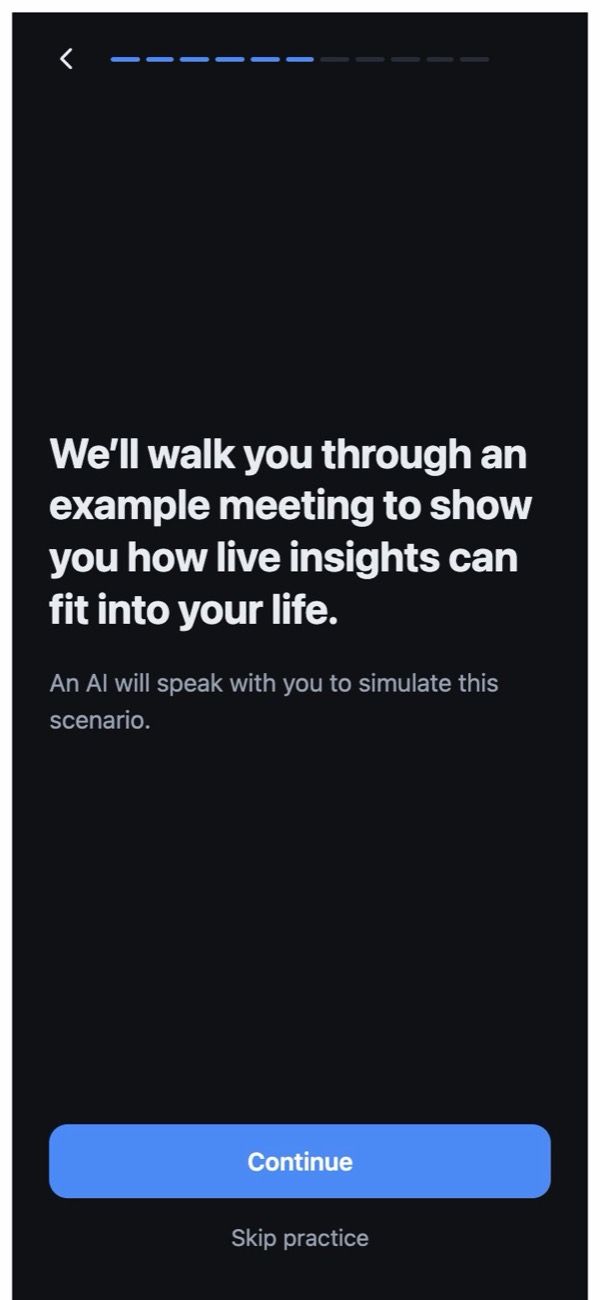
Try a practice meeting
An AI plays the other person, so you see a cue arrive on your lens. Tap your glasses to start, or skip it.
5
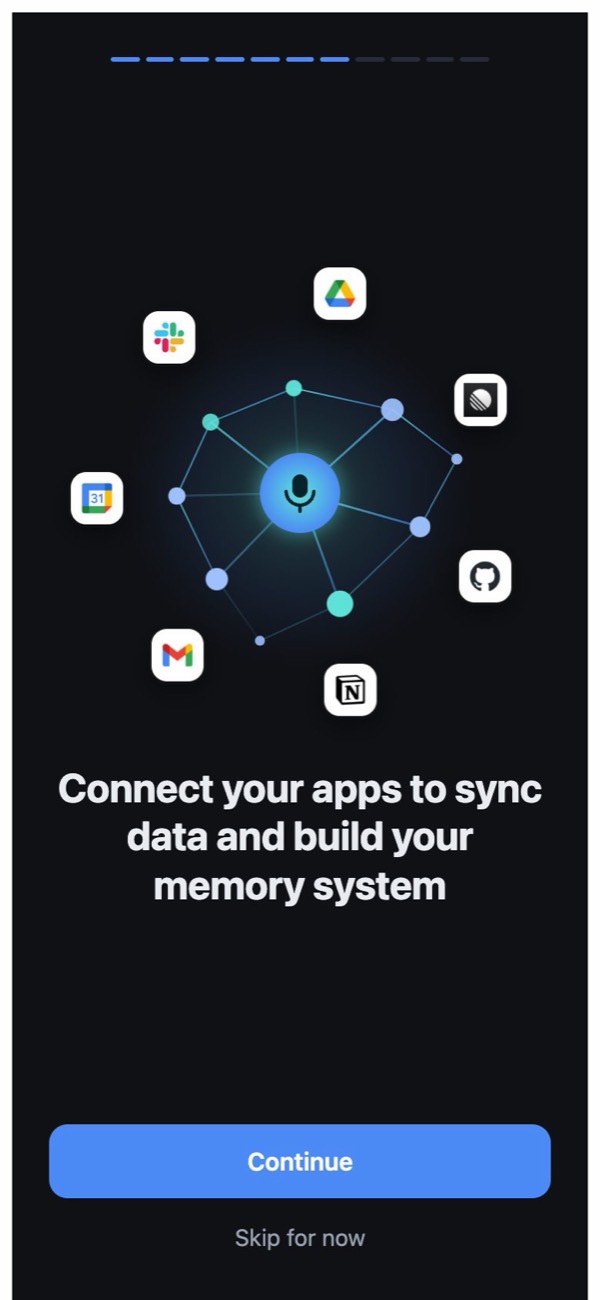
Connect your apps
Gmail, Calendar, Drive, Notion, Slack and more. Your memory is built from them. You can skip and do it later.
6
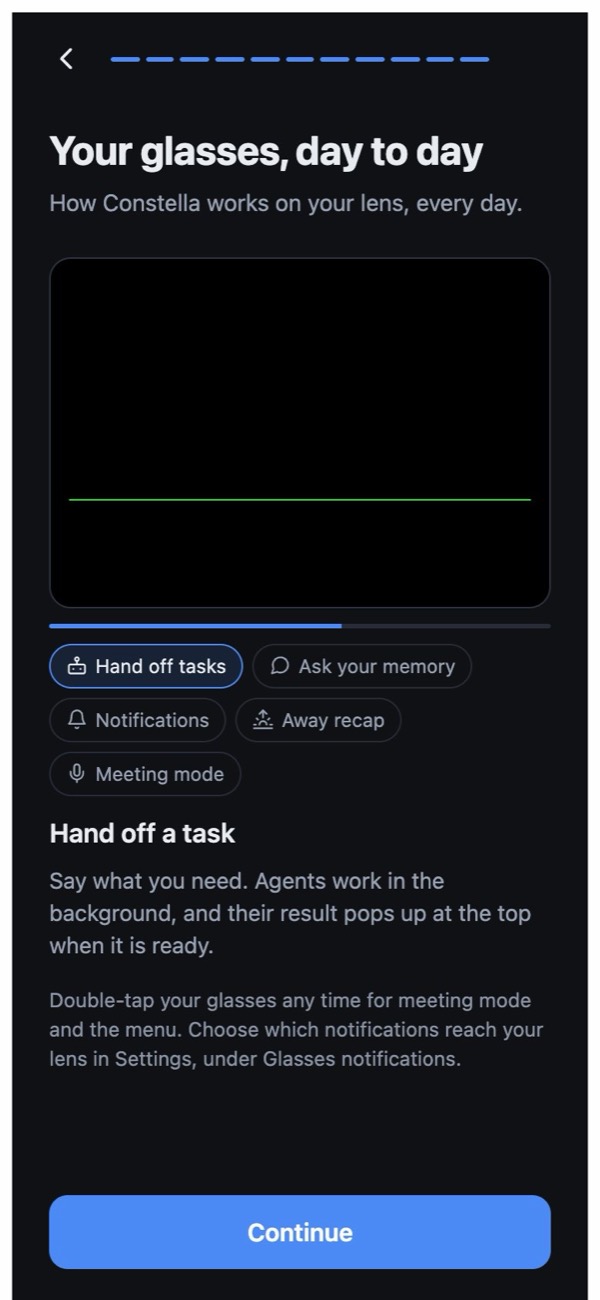
See your day to day
What shows up on your lens, and which gesture does what.
7
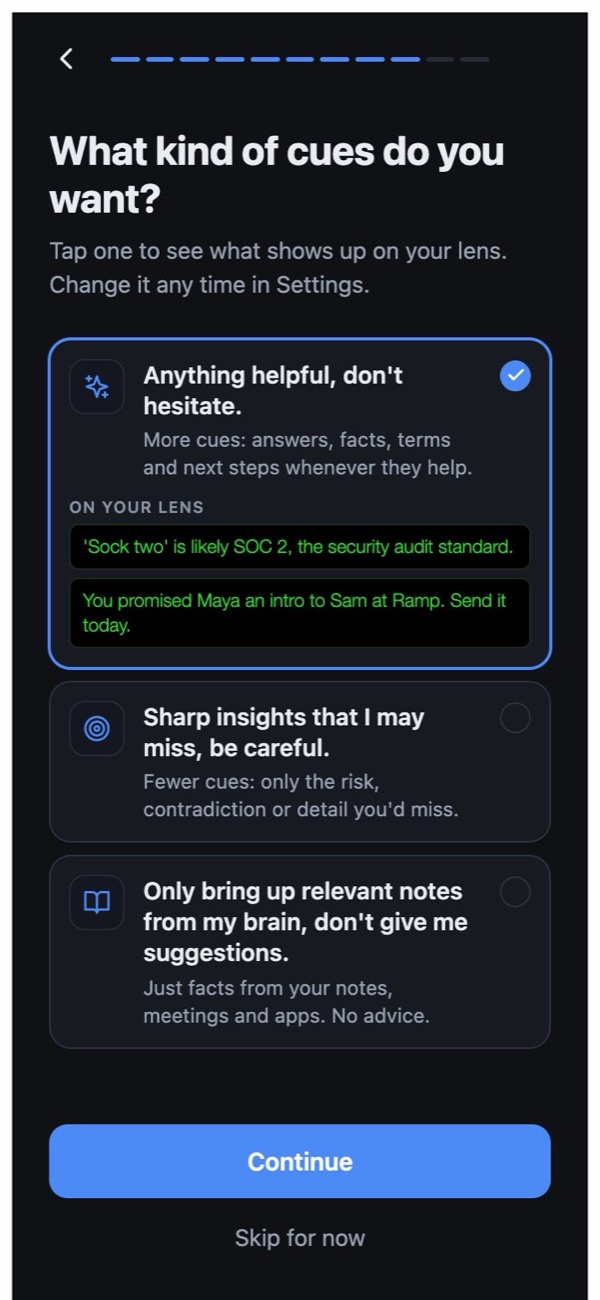
Choose your cues
How much it speaks up in meetings. You can change it any time in Settings.
8
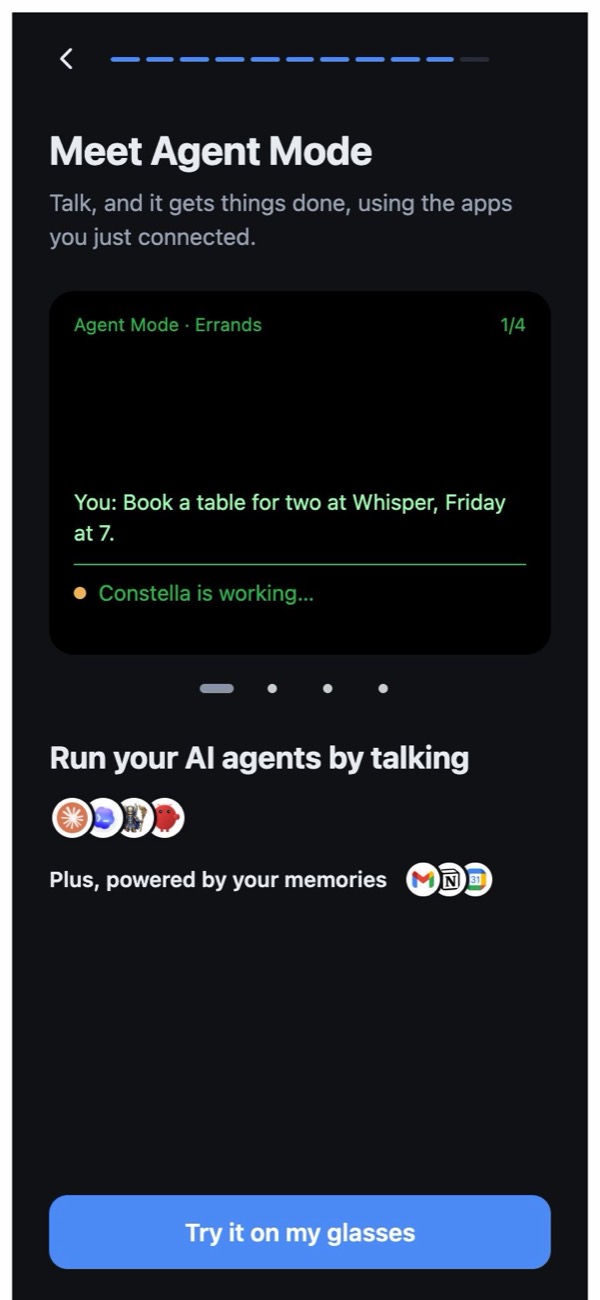
Meet Agent mode
Say a job, and your AI agents do it. Tap Try it on my glasses.
Skipped something? It is all in Settings later.
3
Three gestures run the whole app.
All on the right side of your G2. The lens always shows the next one at the bottom.
TapTalk, open, choose, send.
SwipeMove, later, next, cancel.
Double-tapMenu, meetings, back.
Where you are
Tap
Swipe
Double-tap
Home
Talk to Constella
Open the newest alert
Menu and meetings
An alert comes up
Open it
Later
–
An open alert
Reply by voice
Next one
Back home
Your reply
Send
Cancel
Say it again
Menu
Choose
Move
Close
4
Use the key features
Four things Constella adds to your G2, and exactly how to do each one.
Alerts and replies
Only what needs you reaches the lens. Answer it by voice.
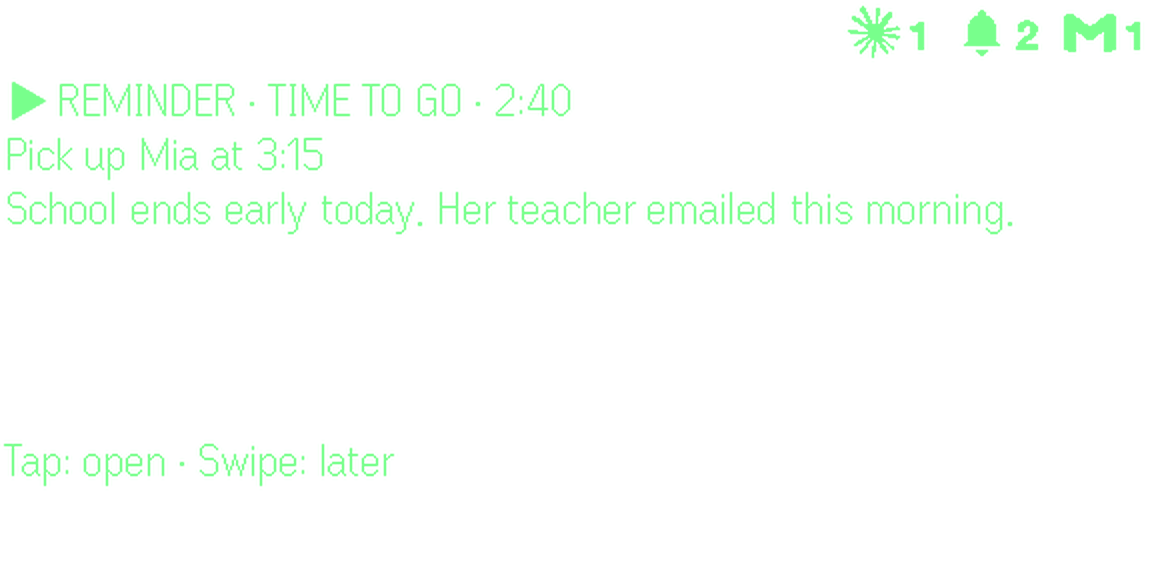
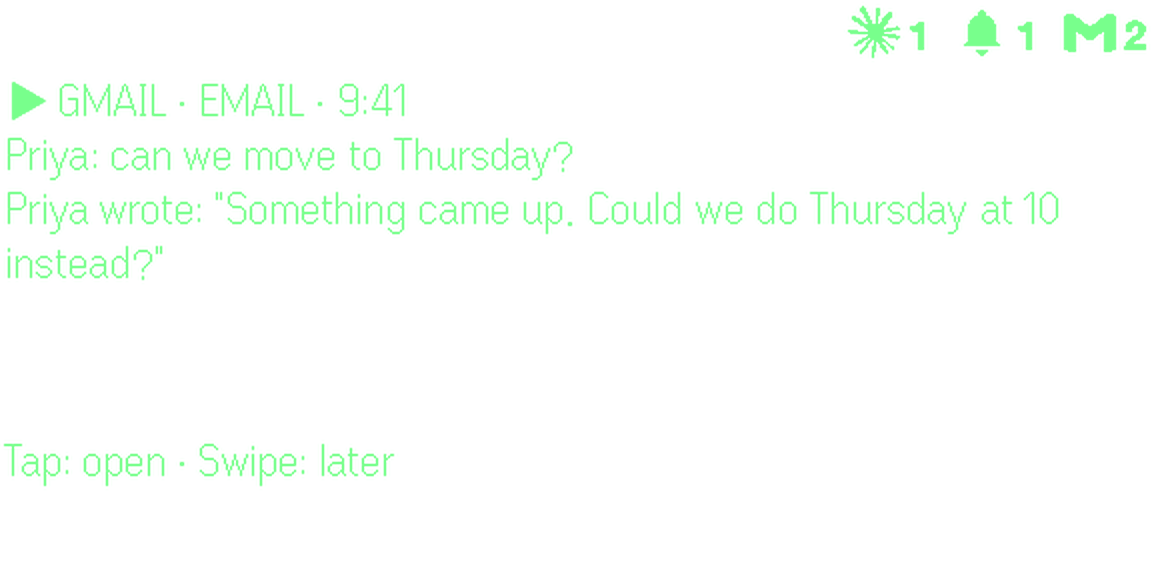
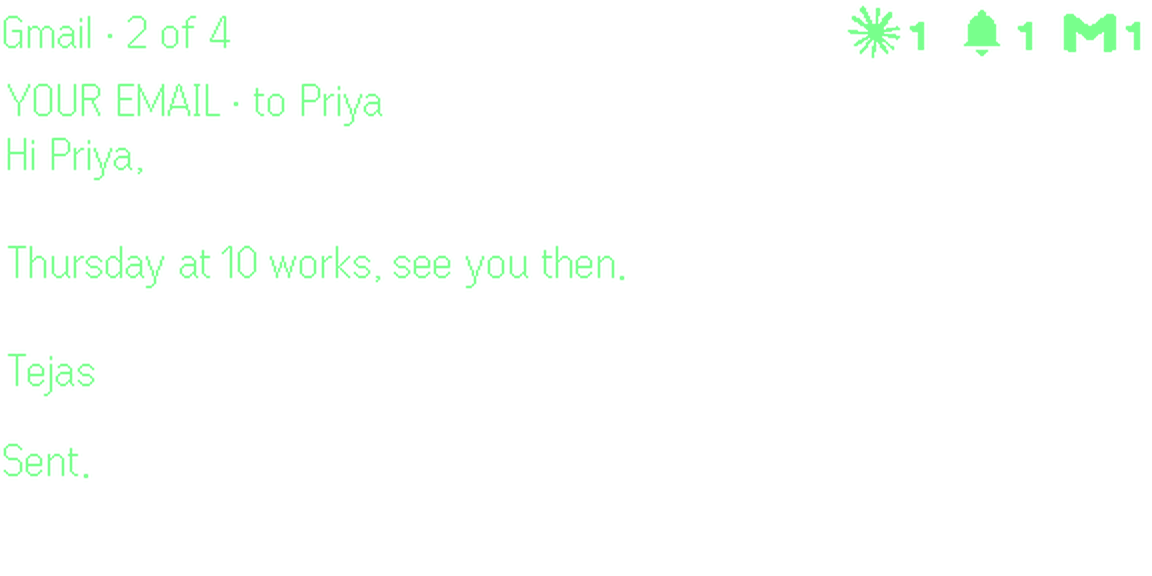
1It arrivesConstella reads new email first. One that needs you comes up at the top of the lens. Leave it, and it folds into a small logo in the corner.
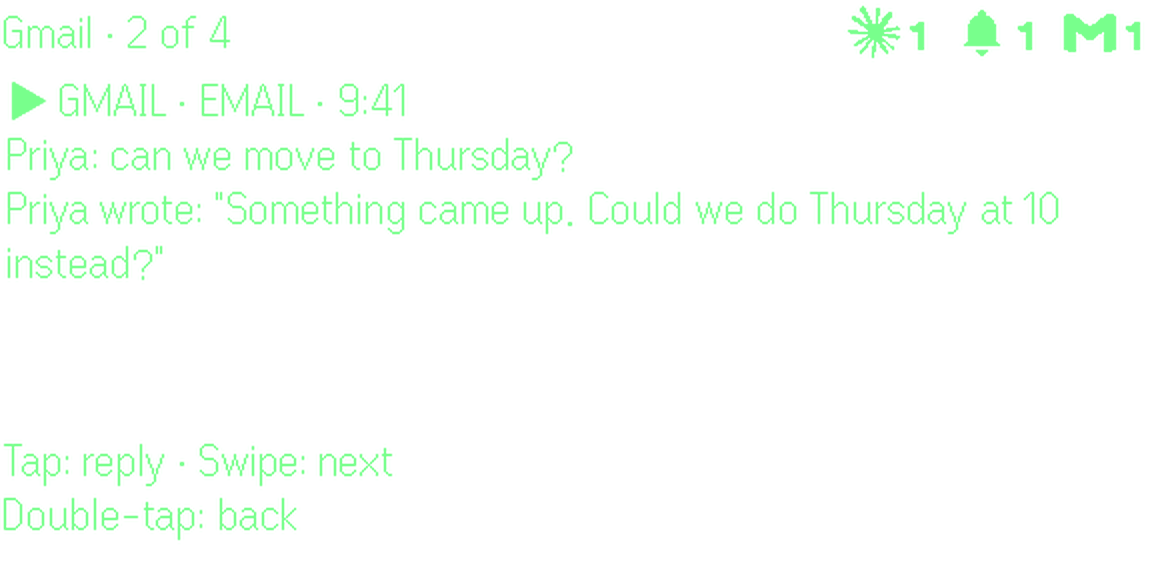
2TapOpen it. You see the whole message: who wrote, and what they asked.
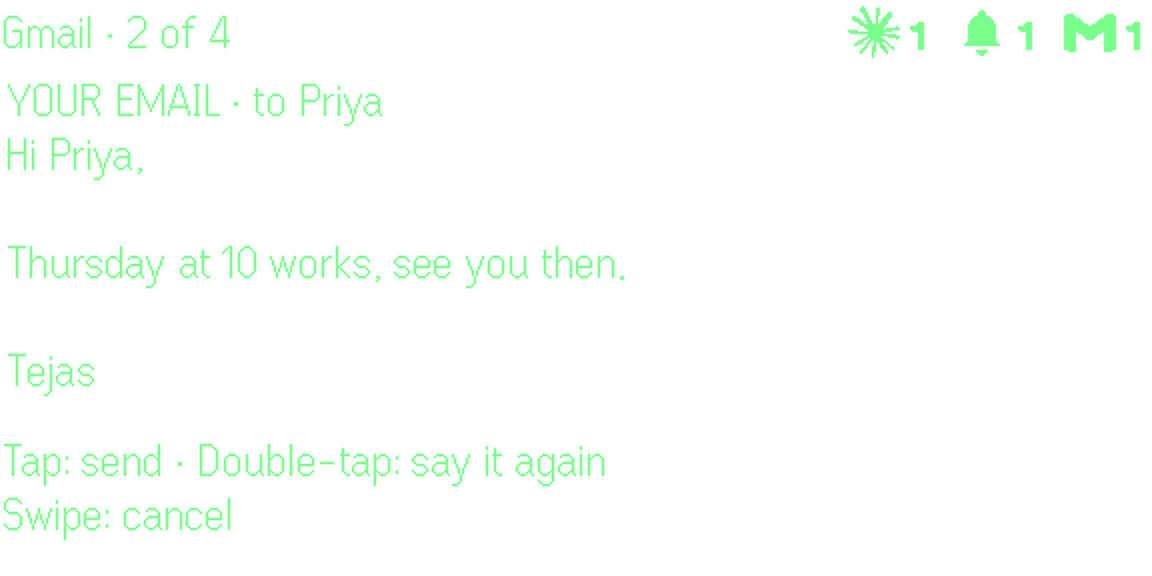
3Tap, then talkSay your answer in your own words. Tap when you are done. It is written as your email, in your style.
4TapSend it. Double-tap to say it again, or swipe to cancel.
Your memory
Ask about anything in your email, calendar, notes and past meetings.
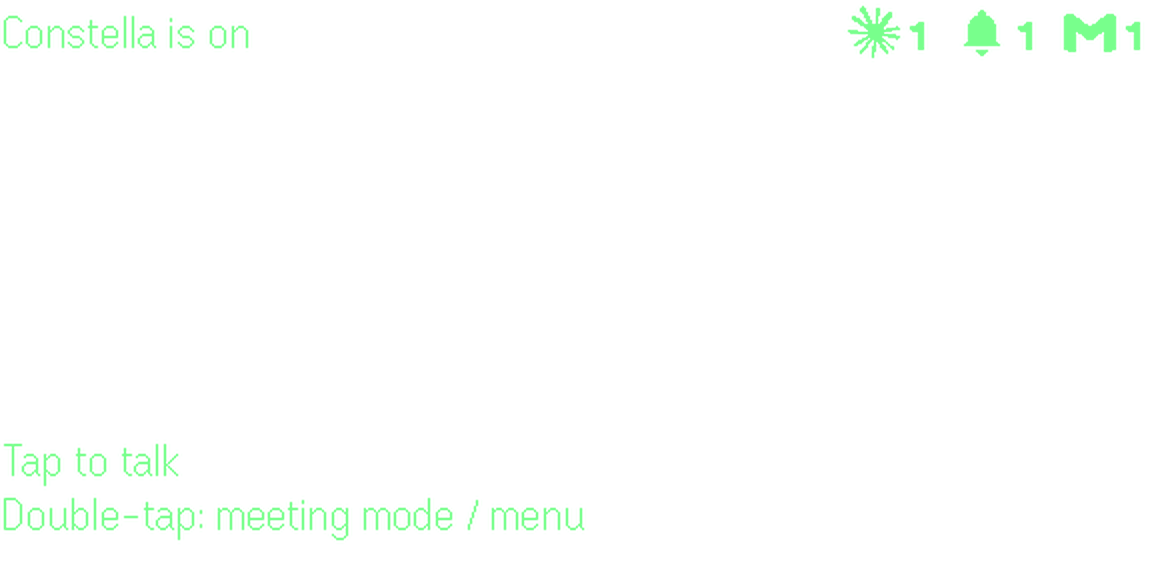
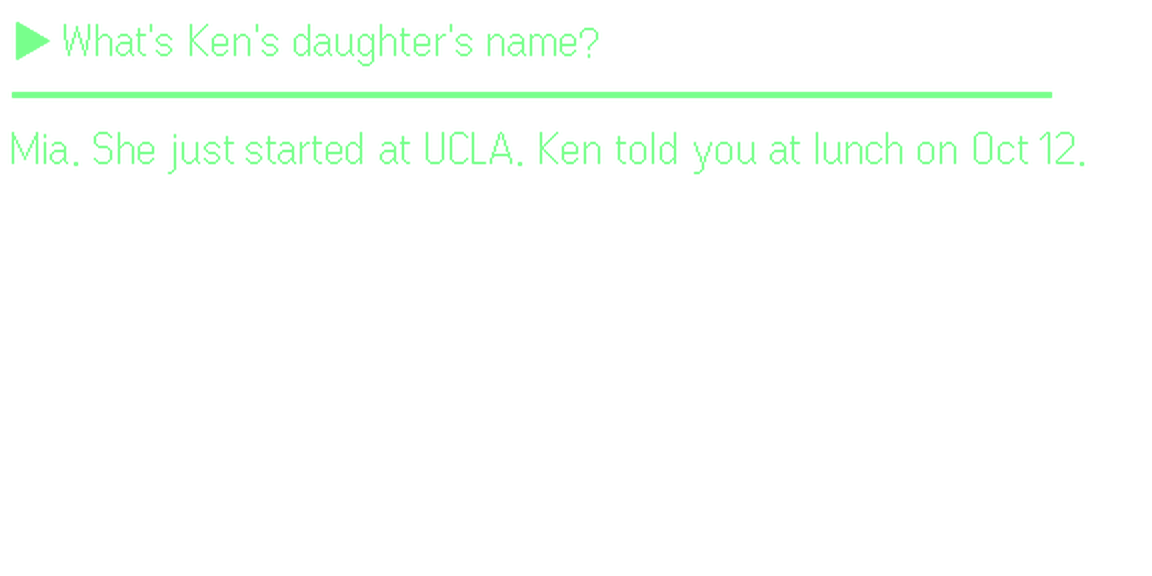
1TapOn the Home screen, tap and ask out loud.
2TalkThe answer comes from your notes, email and past meetings.
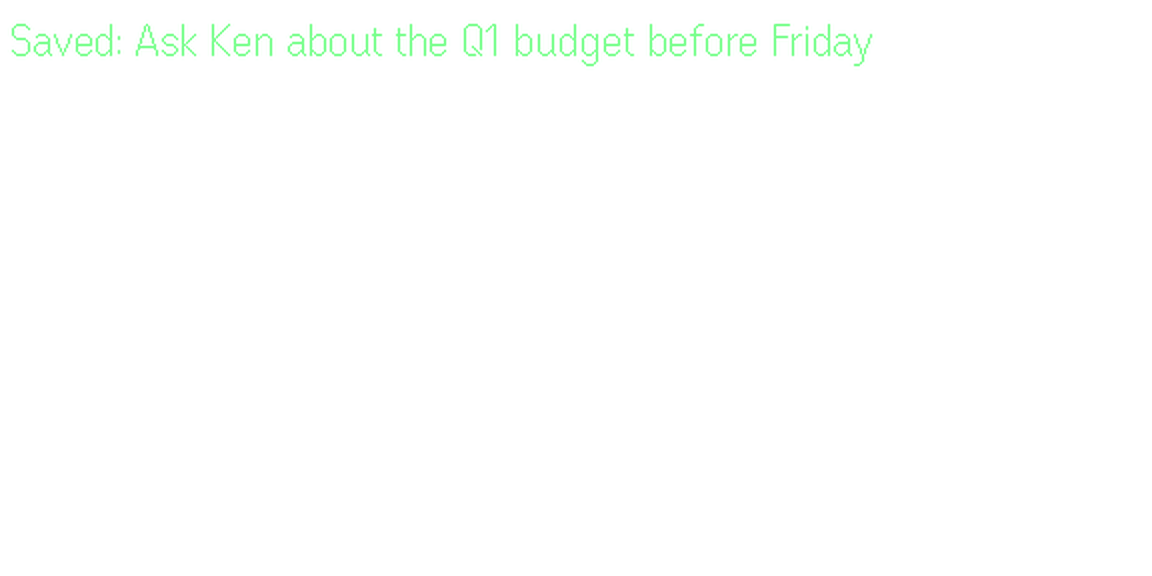
3Tap, then talkOr save a thought in one sentence. It goes into the same memory.
Meetings
Live cues from your own history with the person, while you talk.
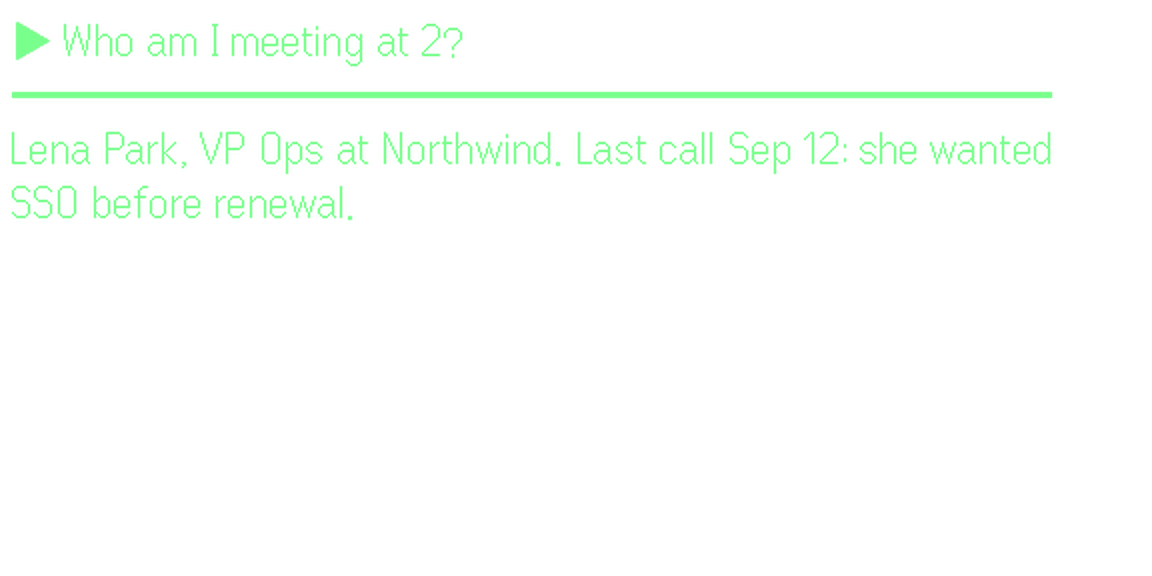
1Tap, then ask“Who am I meeting at 2?” Who they are, and what they wanted last time.
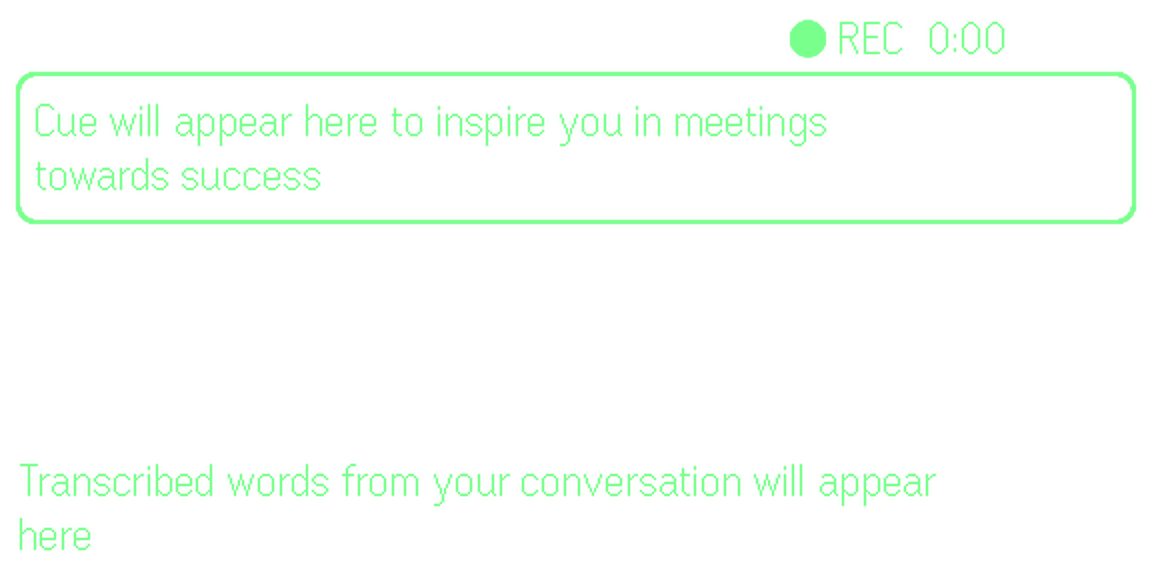
2Double-tapOpen the menu and choose Start meeting. What is said shows as captions.
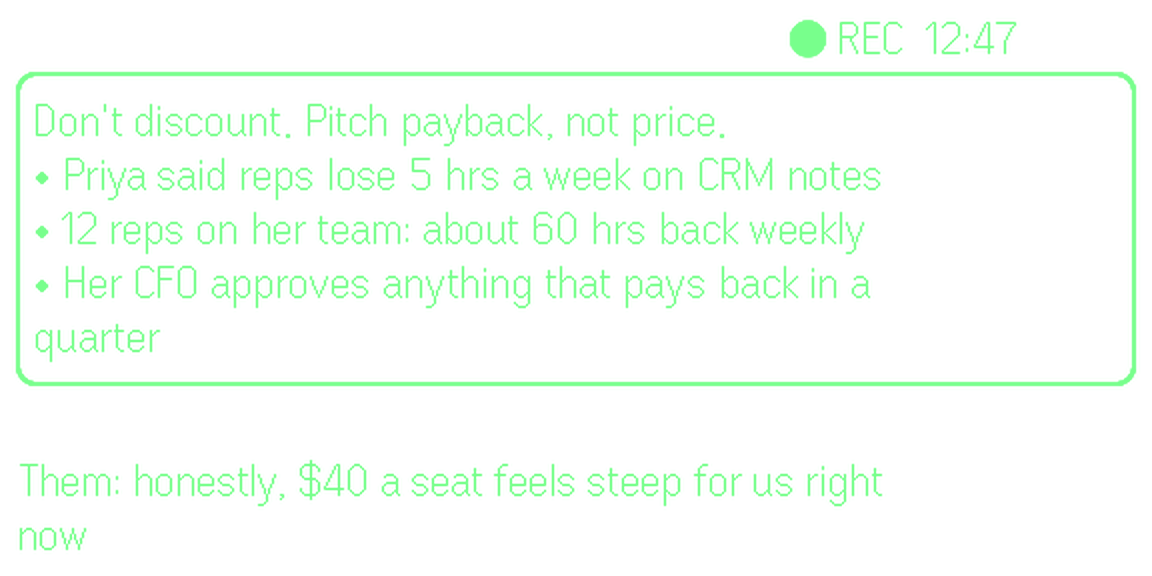
3Just talkWhen something you know matters, a cue comes up above the captions.
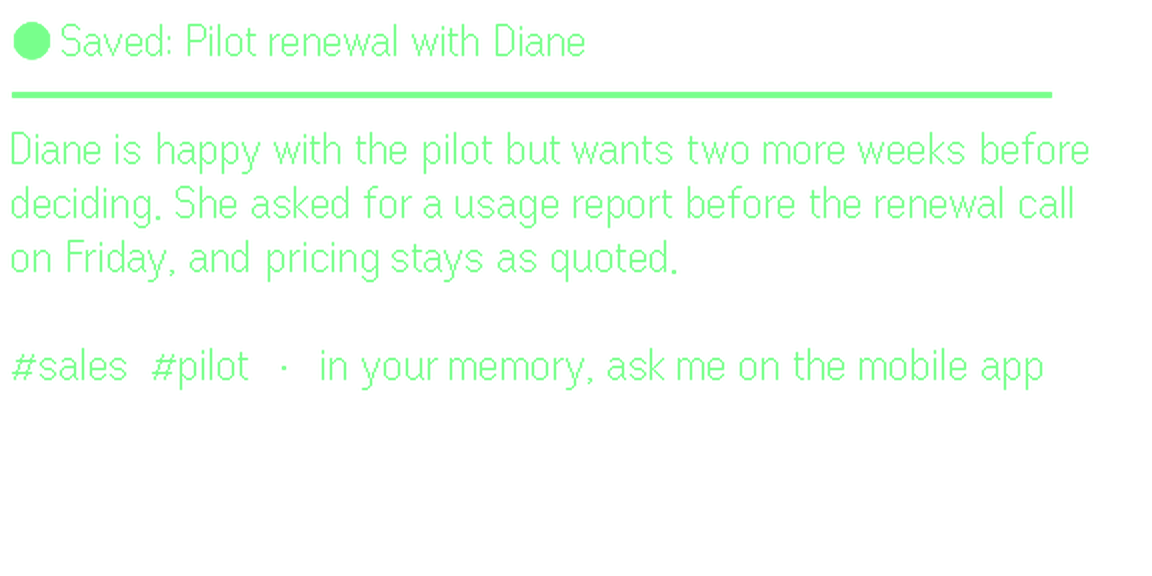
4Double-tapFinish. The meeting is saved with a title, a summary and tags.
Agent mode
Say a job. Your agents do it on a computer that stays on, and report back.
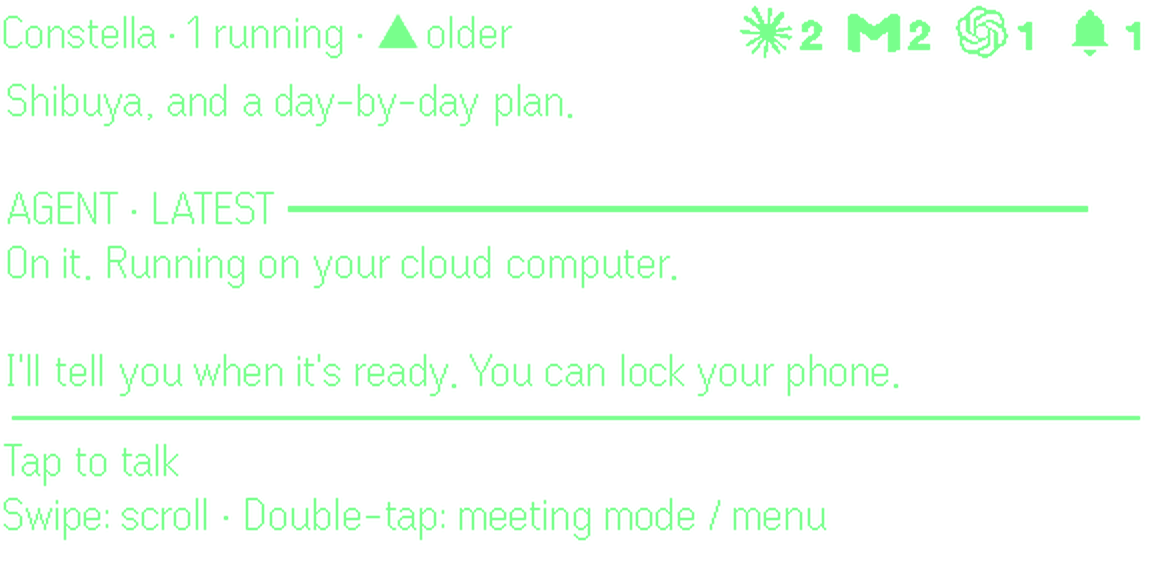
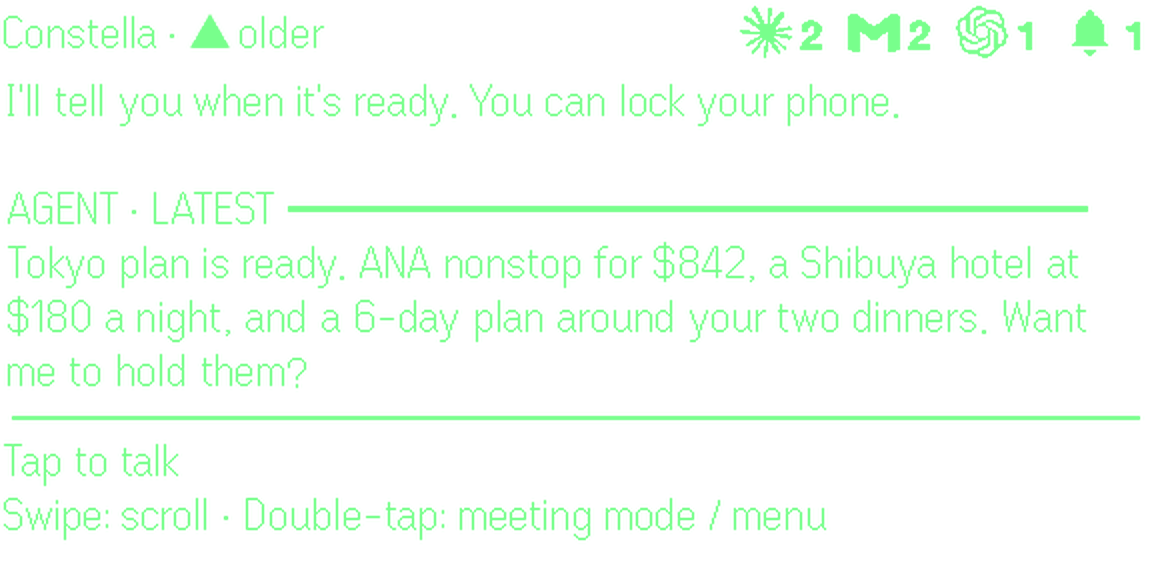
1Tap, then talk“Plan my Tokyo trip next month.” You can lock your phone.
2LaterThe result comes back to the lens when it is ready.
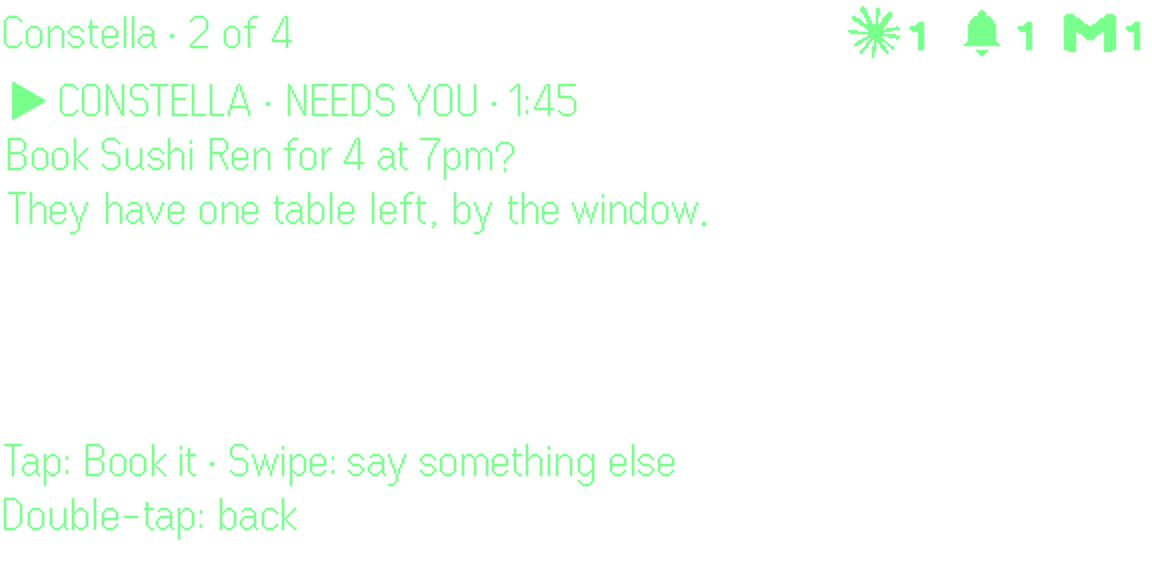
3It asksWhen an agent needs your yes, it asks on the lens first.
4TapOne tap says yes. Swipe to say something else.
5
Your memory on your computer
Everything from your glasses is in your Constella account. Sign in with the same email.
The web app
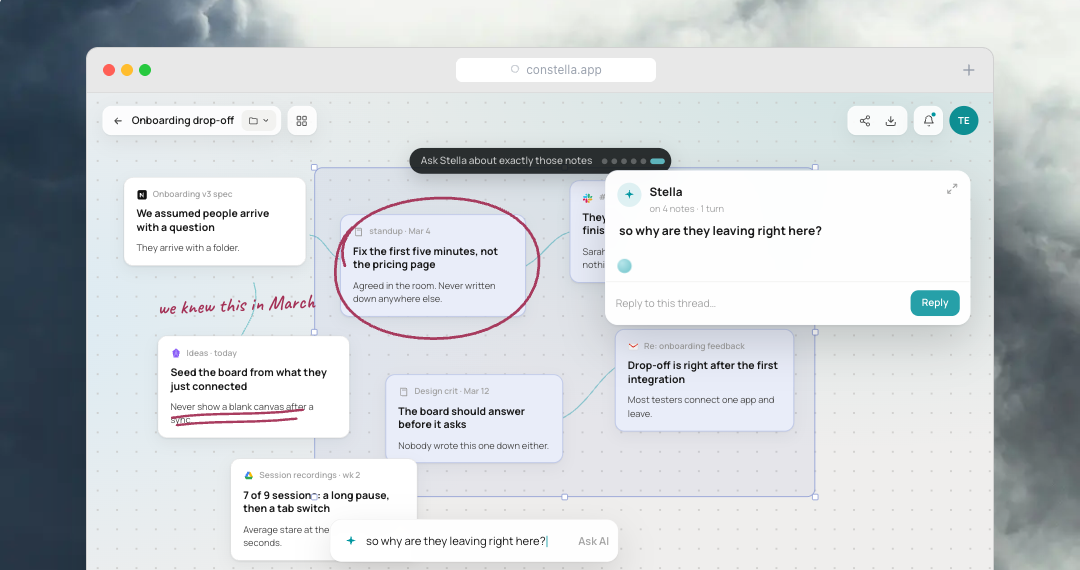
Go to the.constella.app. Your meeting notes, synced apps and memory are all there, on a canvas with AI.
Claude Code and Codex
In the app, tap the Claude / Codex logos next to Settings and copy the one-line setup. Your agents can then search what you said in meetings.
6
If something is off
I can’t find it in Even Hub
Search for “ai second brain”. Constella is listed as AI Second Brain, by Constella Apps. If nothing shows up, update the Even app and try again.
The lens says “Waiting for you”
Finish signing in on your phone. If it still waits, open Settings, then Glasses, and type the code shown on the lens.
My code didn’t arrive
Check spam, then tap Send code again. The code is 6 digits and only works for a few minutes.
No cues yet
Keep talking for a sentence or two. Cues need a bit of speech, and they get much better once your apps finish syncing.
Recording stopped
The Even app pauses when your phone locks or you switch apps. Keep it open and unlocked during meetings.
“Mic unavailable” on the lens
Make sure the glasses are on and connected in the Even app, then tap again.
 Constella for Even G2Get help